
About this guide
Weekdial puts your team's whole week on one dial, in a side panel beside the work you're already doing. This guide takes you from installing it to running a shared week with your team.
You don't need to read it end to end. Module 1 is the only part everyone needs — five short sections that leave you able to run your own week. Everything after it is there when you want it.
Module 4 is the one to read before you invite anyone. Sharing a workspace works differently from keeping your own, and a few minutes there saves most of the questions people ask later.
Module 7 is the page to come back to when something doesn't look right.
There are short videos for every section in this guide at weekdial.app/resources.
If something here isn't clear, tell me — support@weekdial.app.
I read every message myself, and the next edition is better for it.
Module 1 · Introduction
1 · What Weekdial is
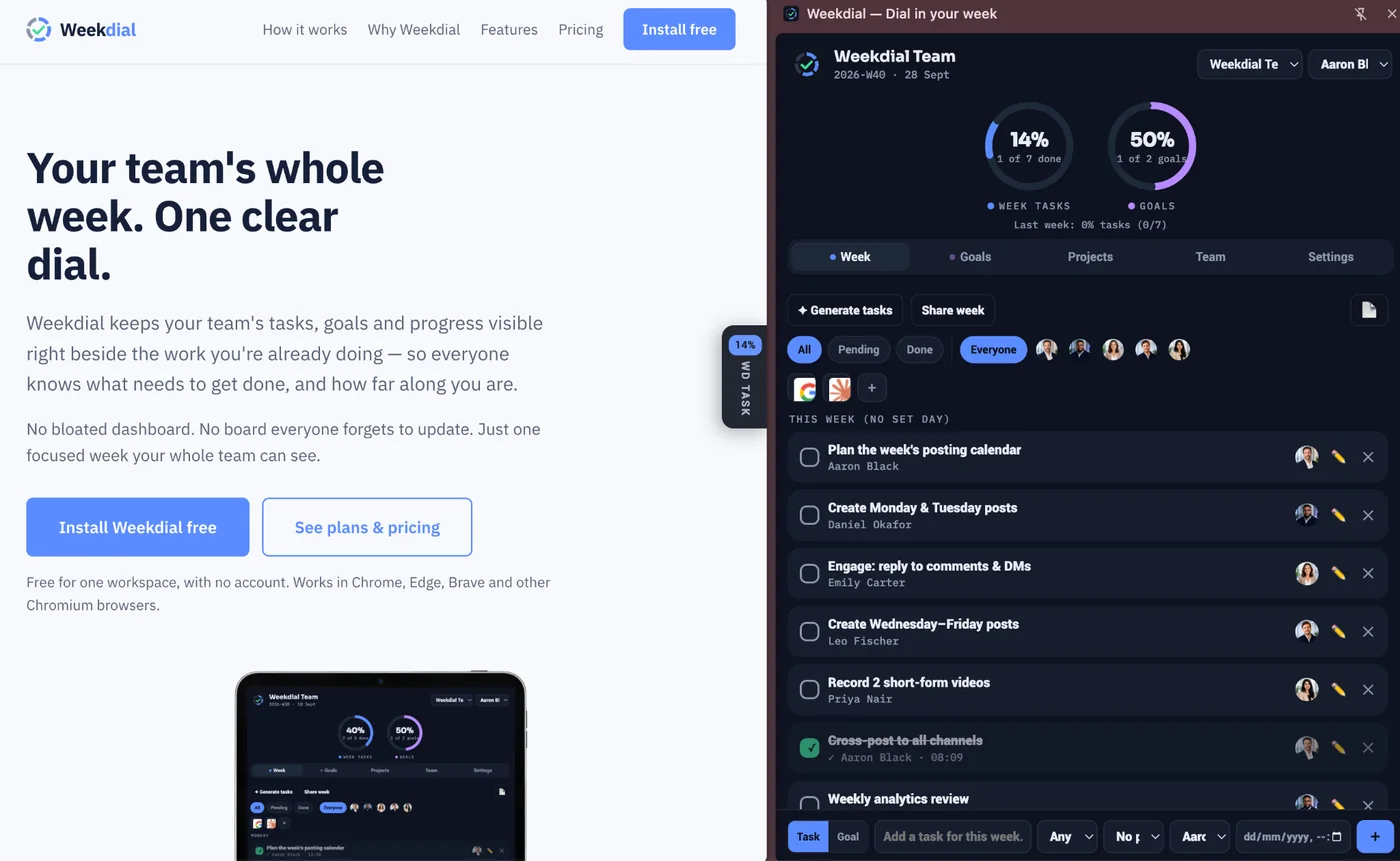
Weekdial is a compact productivity tool that gives teams one clear picture of the week — what needs to get done, who owns it, and how far you've come, without adding another complicated system to manage.
It is a Chrome side panel that holds your team's week. Tasks, goals, and a dial that fills as work gets done — open beside whatever you're already working on, closed again in one click.
It isn't a project manager and it isn't trying to be. It answers one question, the one most teams can't answer on a Wednesday afternoon: where does the week actually stand?
You can use it entirely on your own, free, without an account. Or you can share a week with your team and everyone sees the same board.
Whether you are a small team, an agency, a family coordinating a household, an organisation looking to align various smaller teams, a student collaborating on projects, Weekdial gives you the control, confidence and the much needed visible weekly progress.
2 · Installing Weekdial
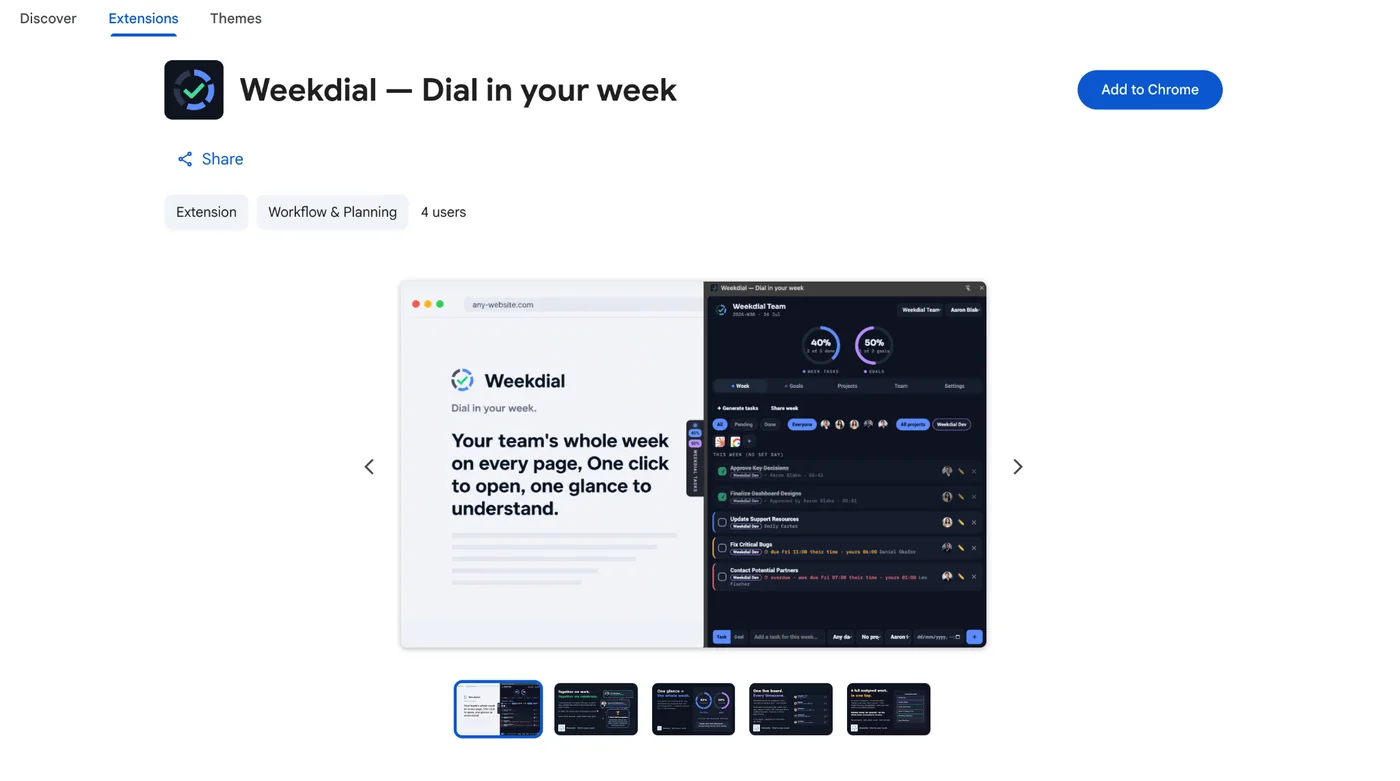
Weekdial installs from the Chrome Web Store in one click. It works in Chrome, Edge, Brave and other Chromium desktop browsers. Not phones or tablets — it lives in the browser's side panel, which desktop browsers have and mobile ones don't.Go here👉 Install Weekdial Free on Chrome Web Store and click on “Add to Chrome” button, to install Weekdial into your Chrome browser.
Install it from the store, not from a file someone sends you. A store installs updates itself; so you can be sure of getting new versions as soon as they are released.
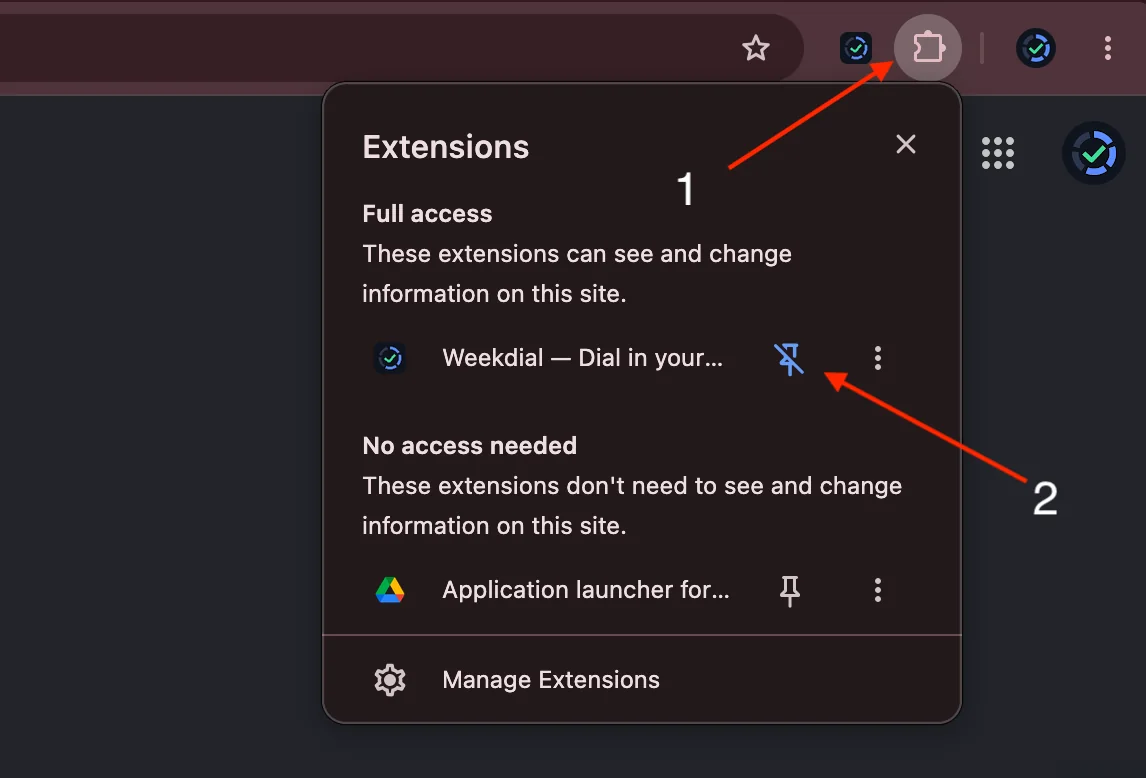
After installing, pin it: click the puzzle-piece icon in Chrome's toolbar and pin Weekdial so its icon stays visible.
3 · Opening and closing the panel
Two ways in, and you'll settle on one.
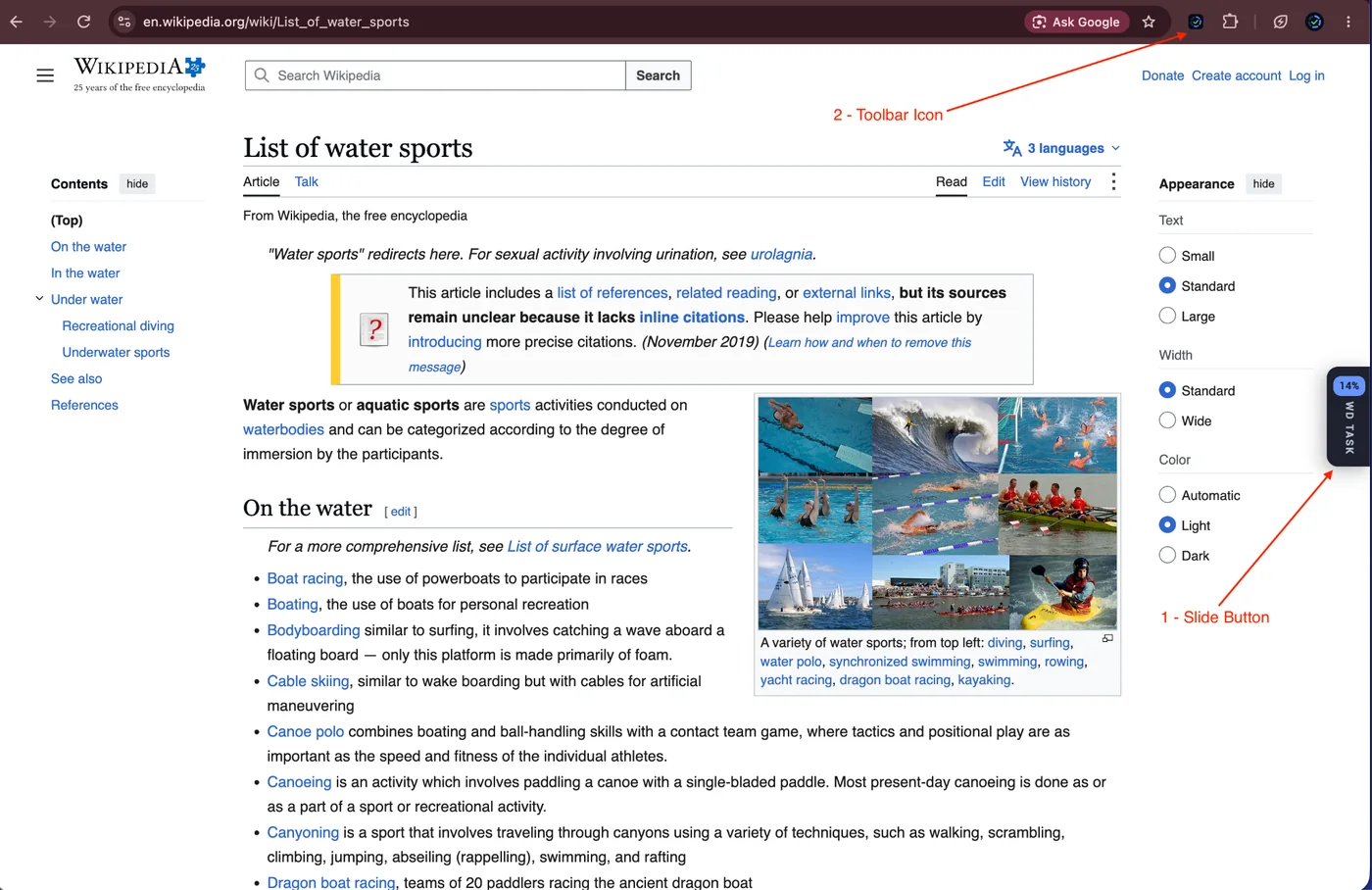
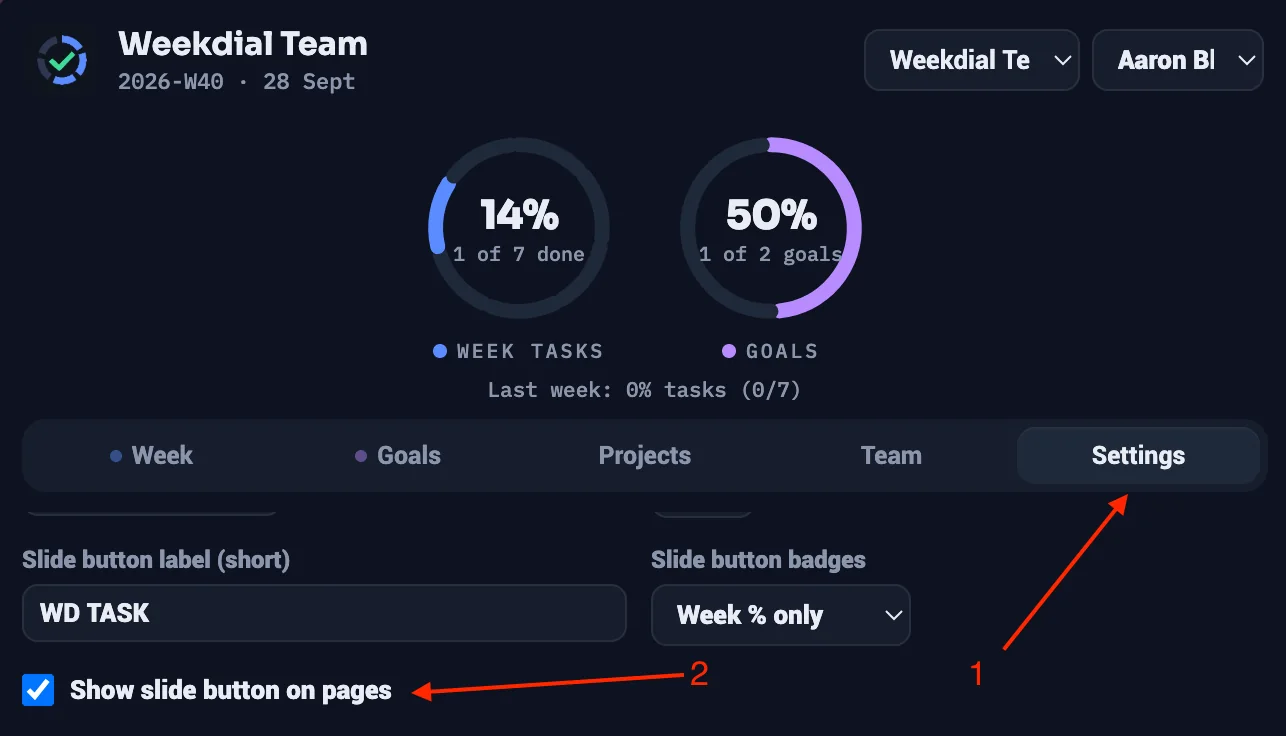
Method #1 - The slide button. A small tab at the right edge of every page. Click it and the panel slides out; click it again and it closes. It shows your week's percentage, so you get a glance at progress without opening anything.
Method #2 - The toolbar icon. Click the Weekdial icon in Chrome's toolbar.
The slide button can be moved up or down — drag it. Its label, colour and position are yours, and you can turn it off entirely in Settings if you'd rather use only the toolbar icon.
4 · Your first tasks
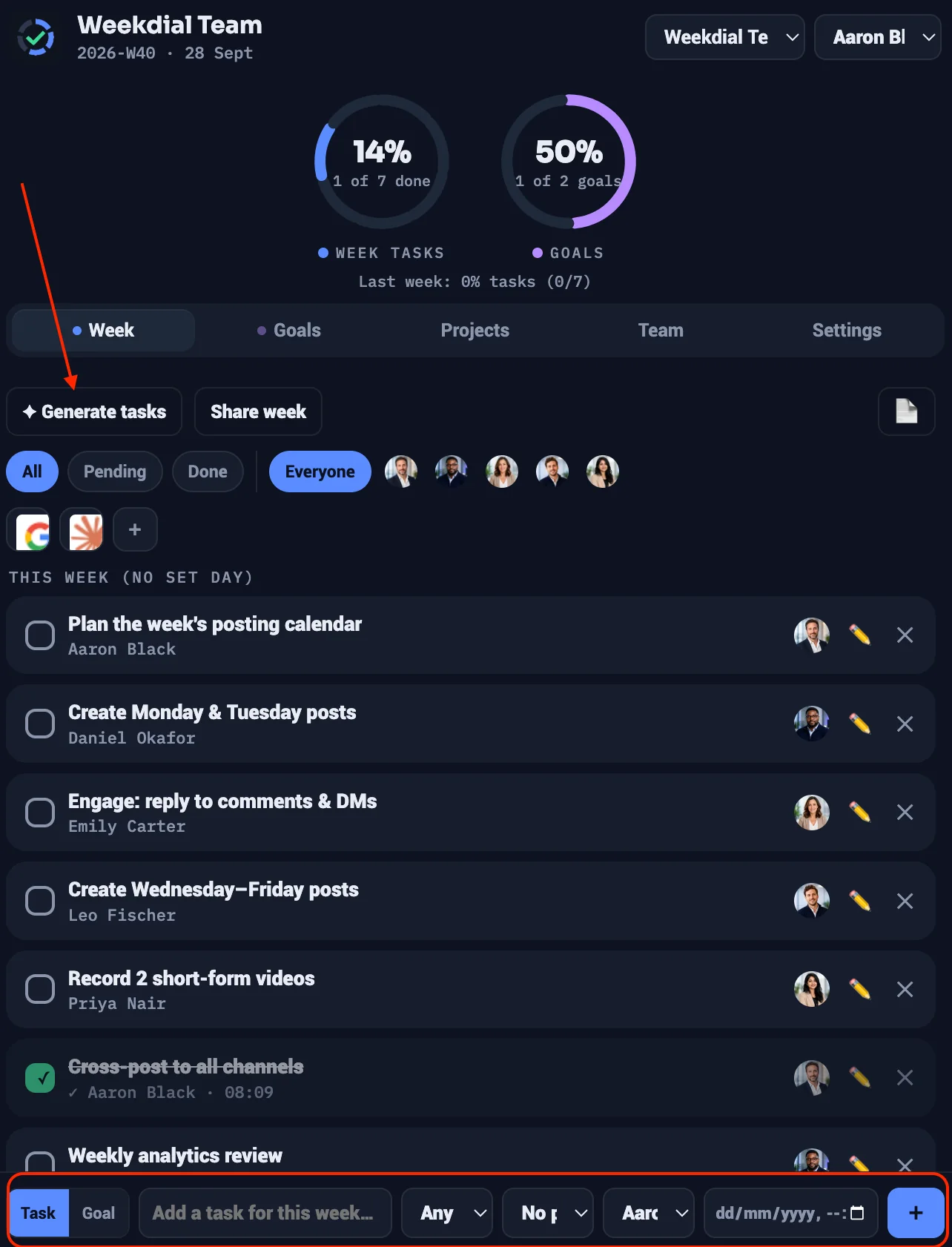
At the bottom of the panel there's a bar where you type. Enter a task, pick a day, and press the + button. That's it.
You can also set a person, a project, and a deadline — but none of those are required, and on your first day you should ignore them. Three tasks with a day each is a real week.
In a hurry? The ✦ Generate tasks button offers six ready-made starter packs — Weekly Ops, Content Sprint, Social Media Week, Client & Customer Care, Planning & Alignment and Deep Work Push — so you can fill a week in a click and edit from there. On a shared board the generated tasks are spread across your team automatically, so reassign anything that landed on the wrong person.
5 · The dial
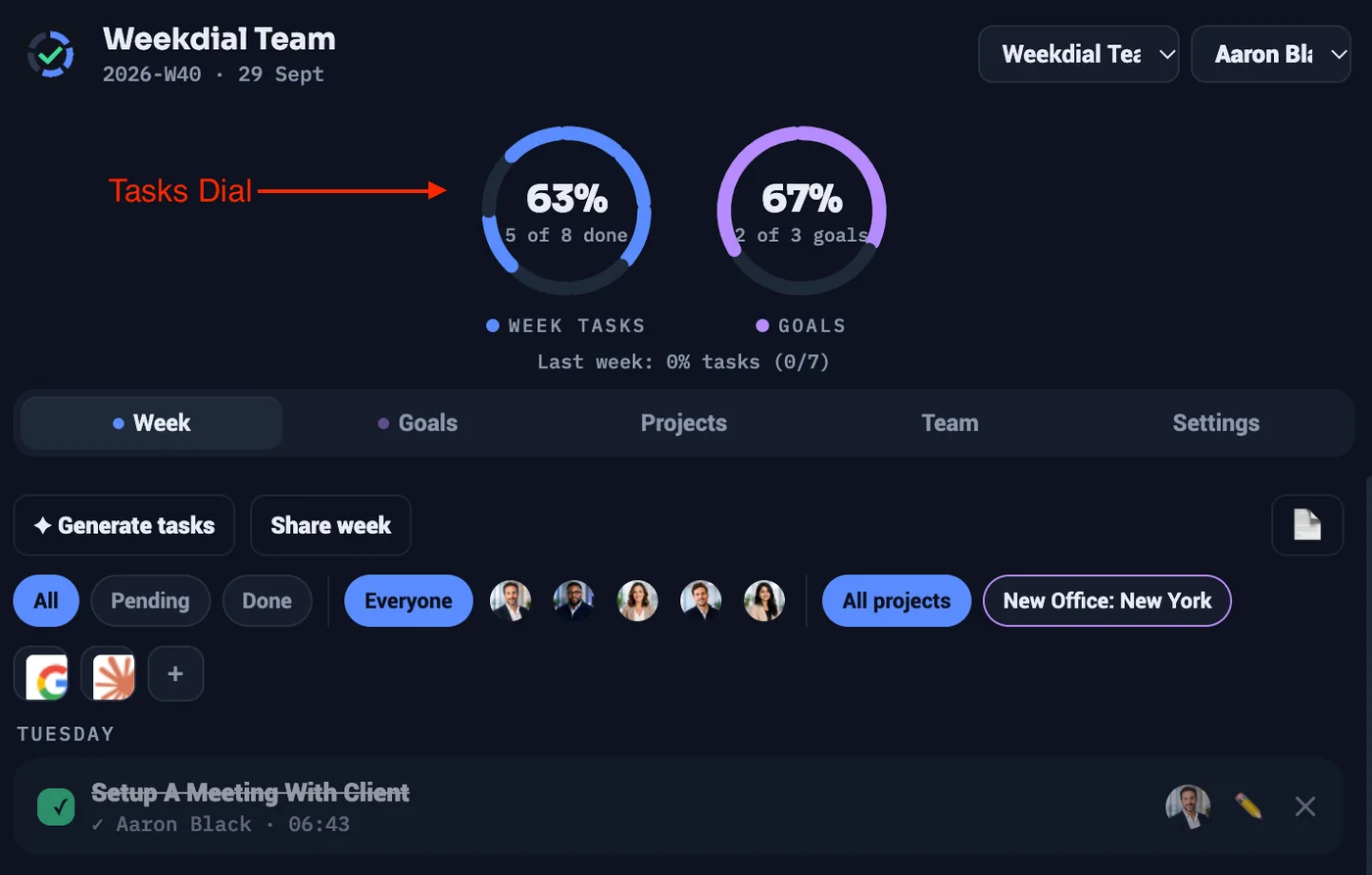
This is the part worth understanding, because everything else hangs off it.
Every task is a segment of the ring. Five tasks, five segments. Tick one off and its segment lights up and the percentage climbs.
That's the difference between Weekdial and a list. A list tells you what's left. The dial tells you how far through the week you are — at a glance, from across the room, without reading anything.
When everything is done, the ring completes and you get a moment of celebration. On a shared board, everyone gets it, and everyone who completed something that week is named.
Module 2 · Your own week
6 · Days, owners and deadlines
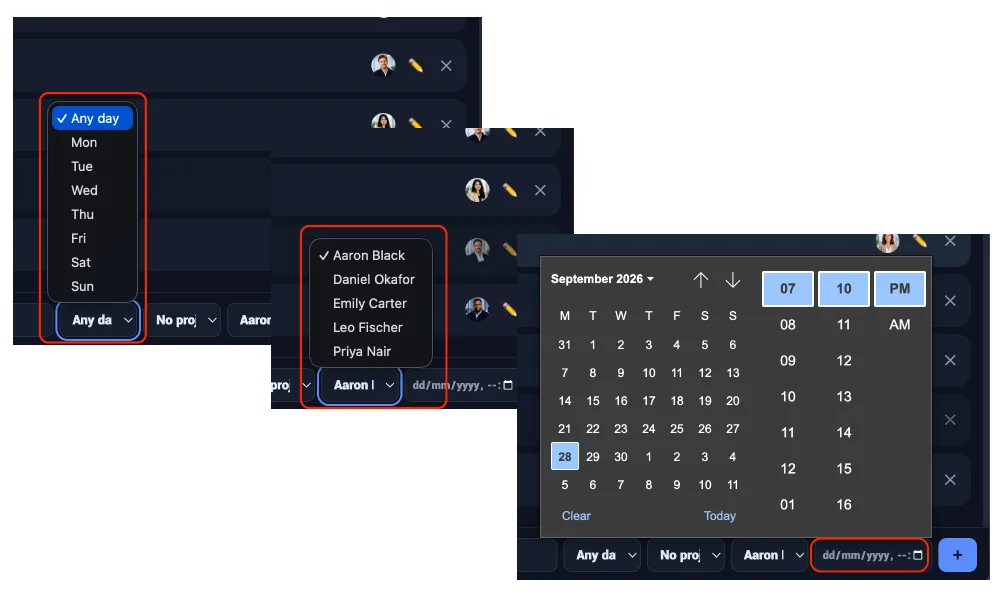
Every task can carry three optional things.
A day - which day of the week it belongs to. Tasks group under day headings so the week reads top to bottom.
An owner - who's doing it. On your own board that's you; on a shared one it's whoever you assign.
A deadline - a date and time. Weekdial reminds you when it's approaching or passed, whether or not the panel is open.
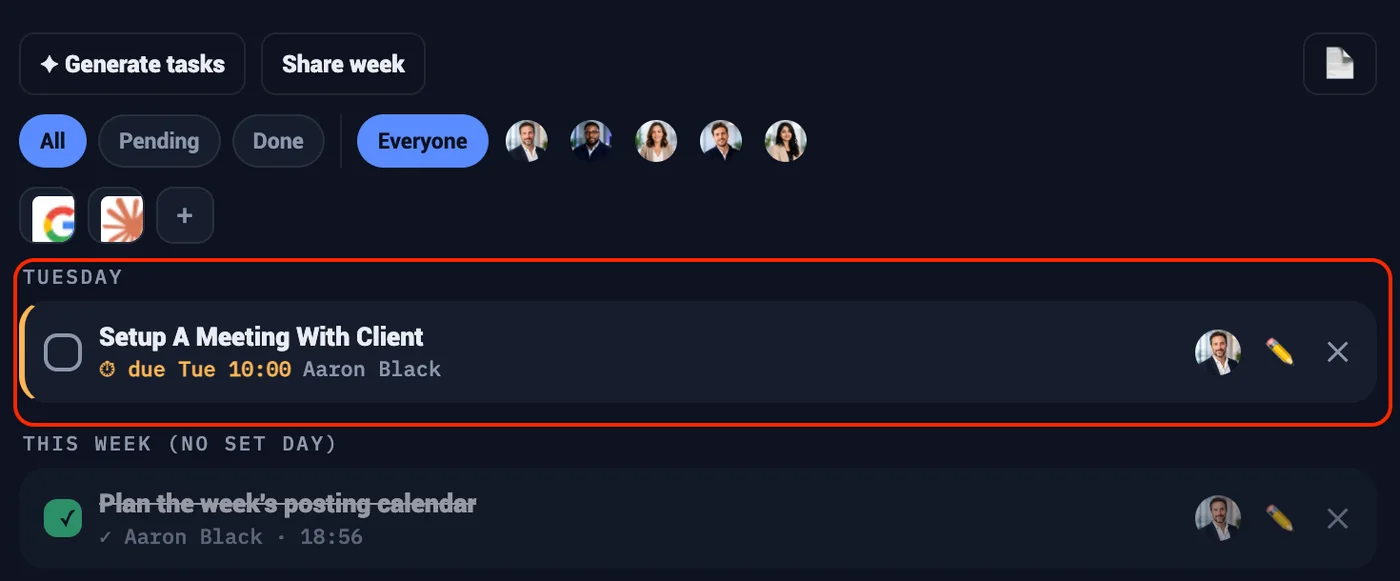
None are compulsory. A task with nothing but a title is still a task, and still a segment on the dial.
7 · Completing and undoing
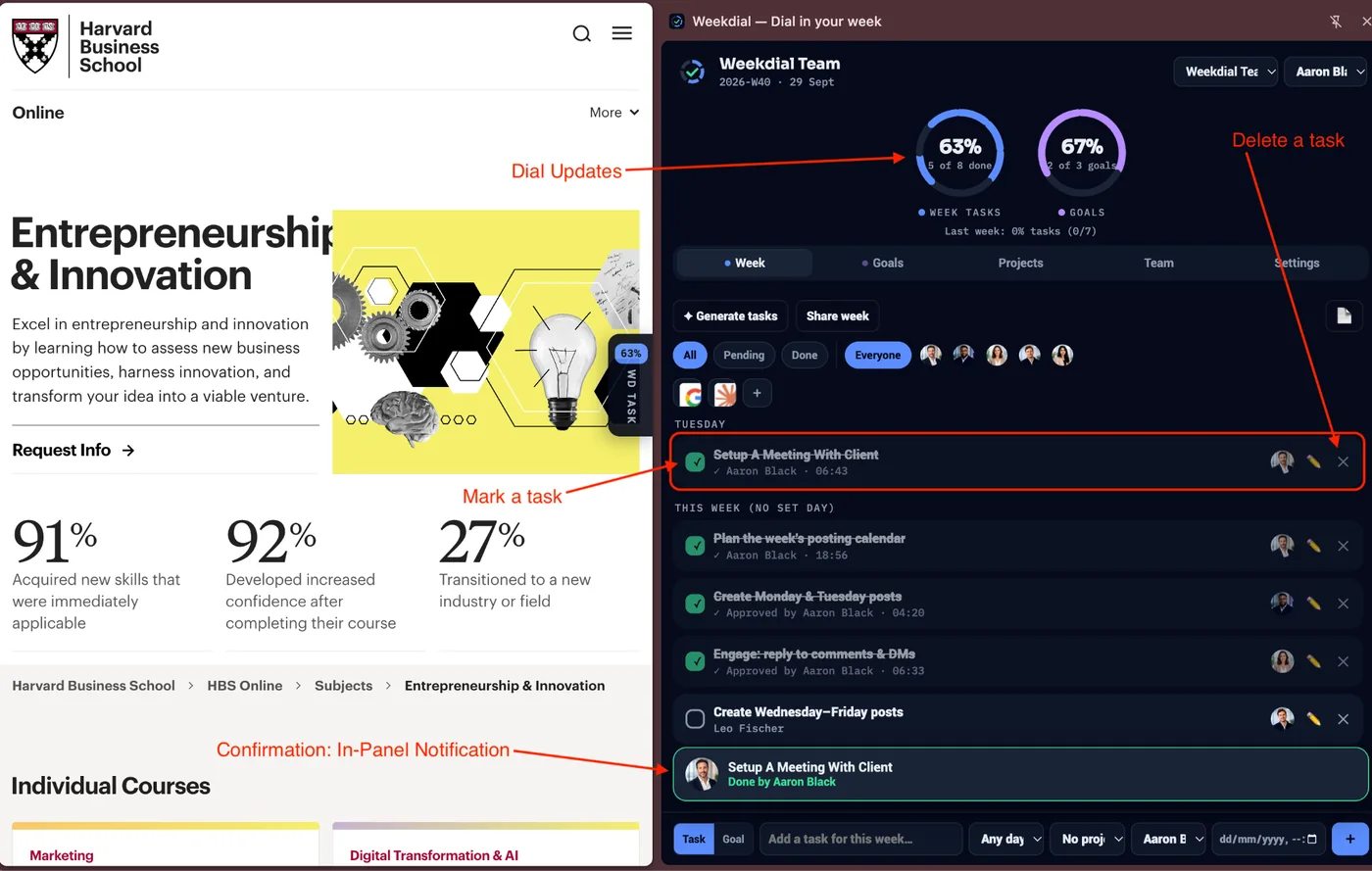
Click the circle beside a task to complete it. The row softens, the segment lights, the dial climbs — and you get a small confirmation, with a sound if you've left sounds on.
Click it again to un-complete it. Nothing is lost; the dial simply goes back down.
Deleting is separate, and it's the × at the end of the row. Deleting removes a task from the week entirely, so the dial recalculates as though it was never there.
8 · Goals
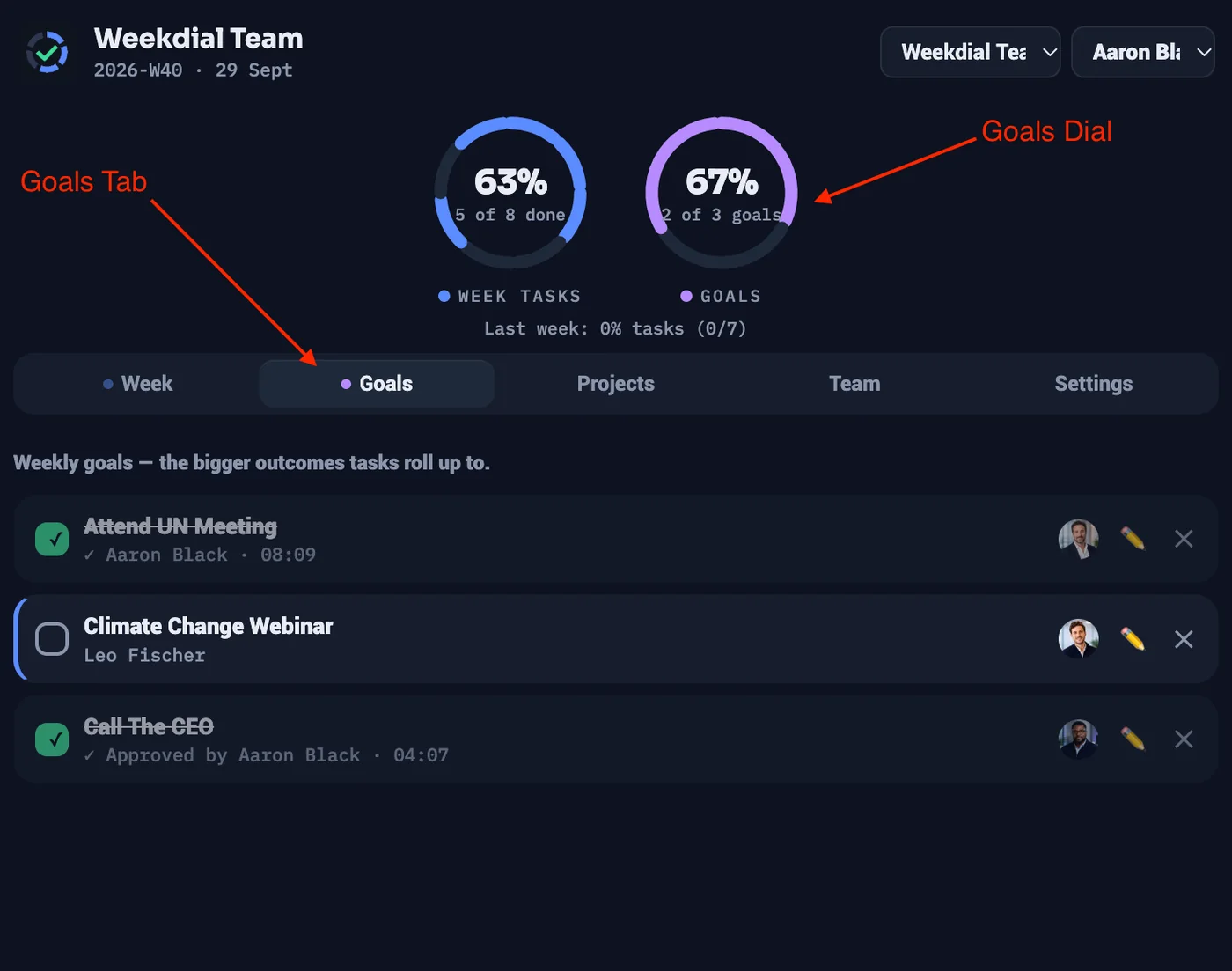
Goals are the bigger outcomes of the week — "ship the launch page", "close the Ellis contract" — as opposed to the individual jobs that get you there.
They live in their Goals tab, they can carry owners and deadlines like tasks, and they have their own dial, shown beside the tasks dial.
Note: Ticking tasks does not move the goals dial. Goals are tracked independently, on purpose. A goal is done when you say it's done — not when some number of tasks happen to be finished. Two dials, two separate questions: how much work got done and how much actually got achieved.
9 · Projects and filters
Projects group related work — a client, a launch, a workstream. Assign a task to a project and you can then see only that project's work.
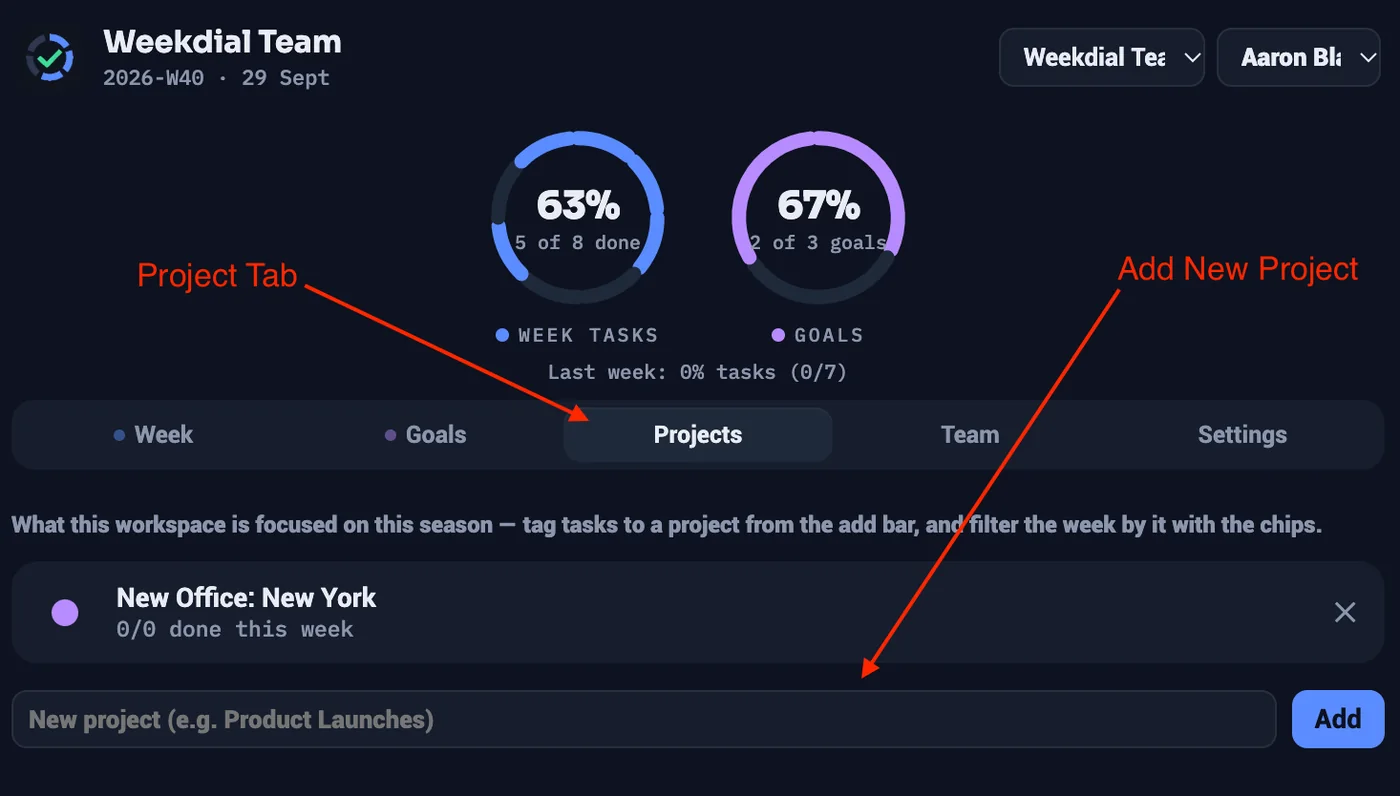
Filters sit above the list:
All / Pending / Done — by status
Everyone, or a single person
Project chips — by project
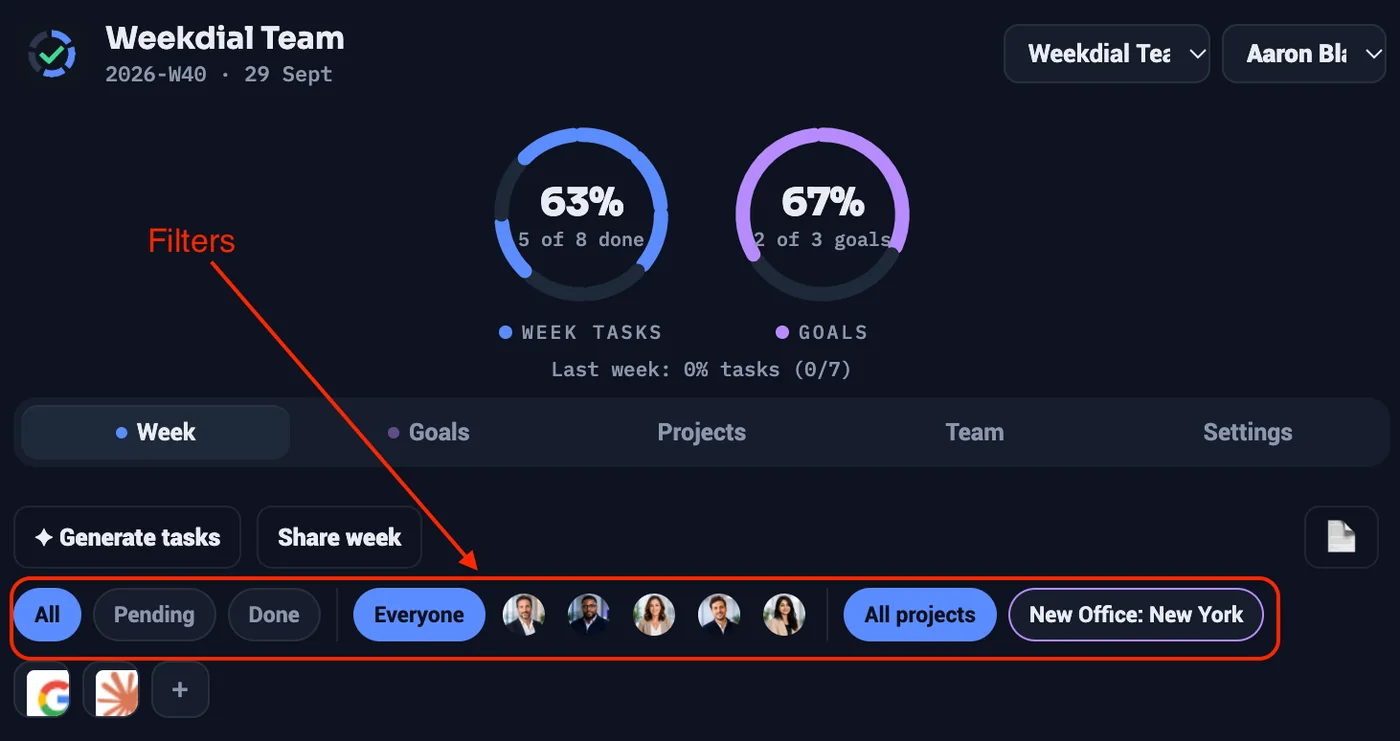
They combine. Pending + Aaron + Launch shows you exactly what Aaron still has to do on the launch, and the report you generate will respect that same view.
10 · This week, and what came before
Weekdial shows this week. Not last week, not next week — the one you're in. That's deliberate: the whole product is built around one question, where does this week stand, and a week you can browse away from stops being that.
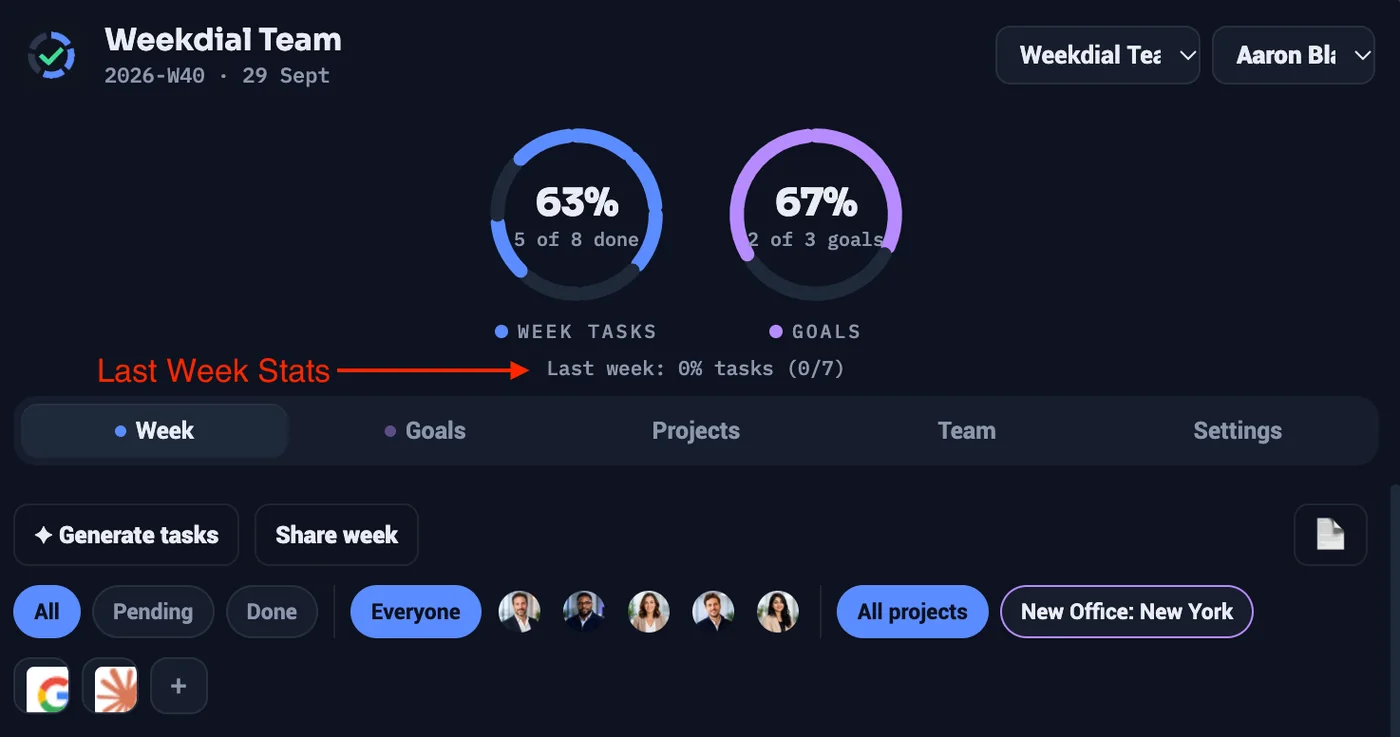
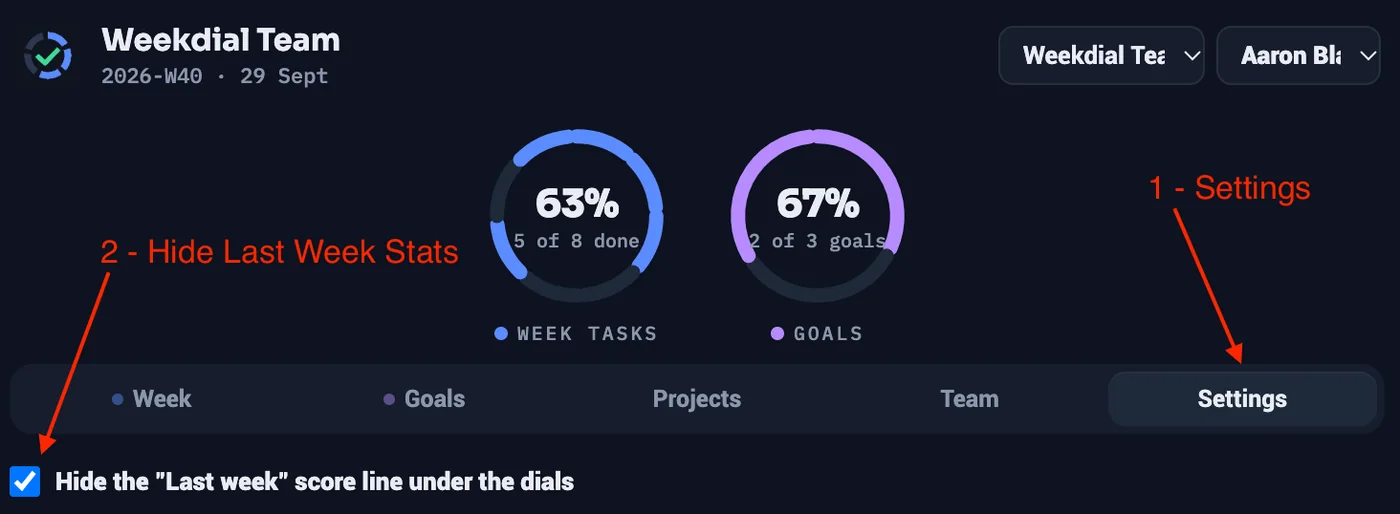
You still see where you came from. Above the current week sits a single line — "Last week: 100% tasks (9/9)" — so the week starts with context rather than a blank slate. If you'd rather it didn't, you can hide it in Settings.
Unfinished work isn't stranded. When the new week begins, Weekdial offers to carry anything incomplete forward. You choose.

Declining applies to this week only. Next Monday it asks again. Nothing is deleted by saying no, and nothing is lost by ignoring it — the work is still there.
Module 3 · Making it yours
11 · The weekly note
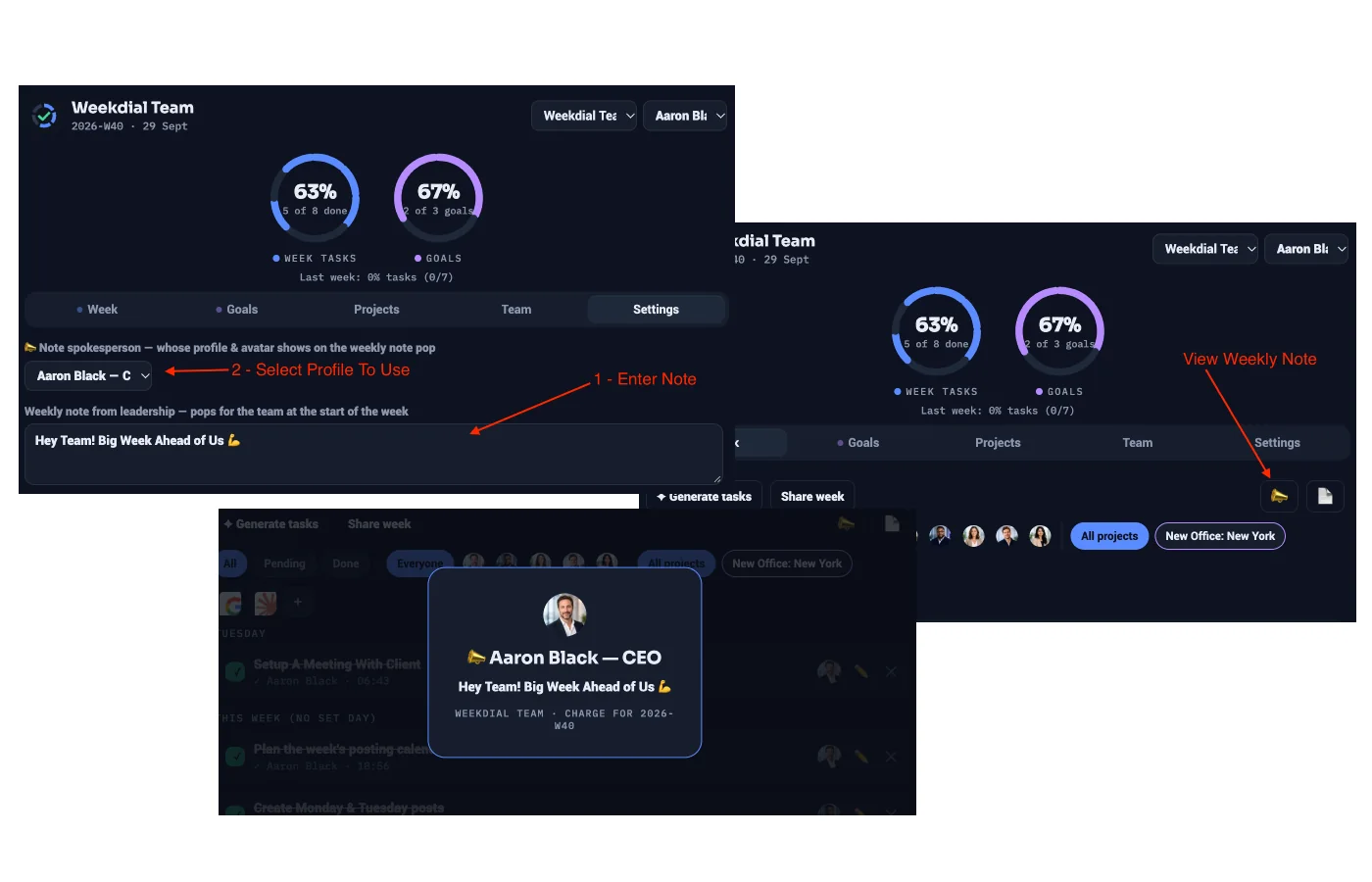
One message, pinned to the week, seen by everyone on the board — "we're closing Friday", "focus is the launch this week".
It appears when someone opens the board, and it can be recalled any time from the 📣 chip in the Week tab.
The note belongs to the week. When the week ends, it goes with it — so next week starts clean instead of carrying last week's announcements. In the settings tab > enter the weekly leadership note and select the note spokesperson from the drop down list.
12 · Templates
If your weeks have a shape — the same Monday review, the same Friday report — save that shape as a template and apply it to any week in one click.
Applying a template never destroys what's already there. It adds; it doesn't replace. So you can apply a template to a half-built week without losing the half you built.
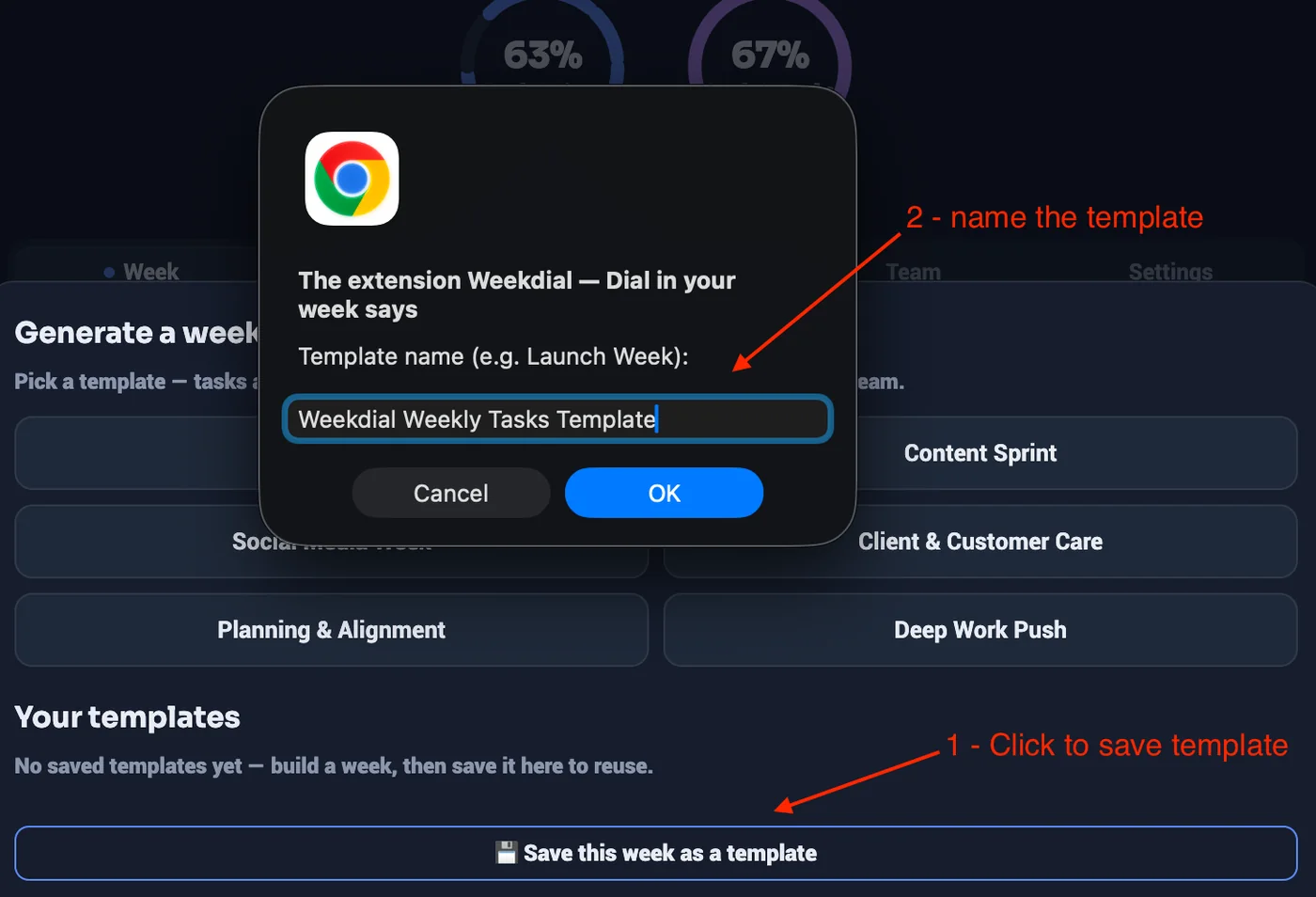
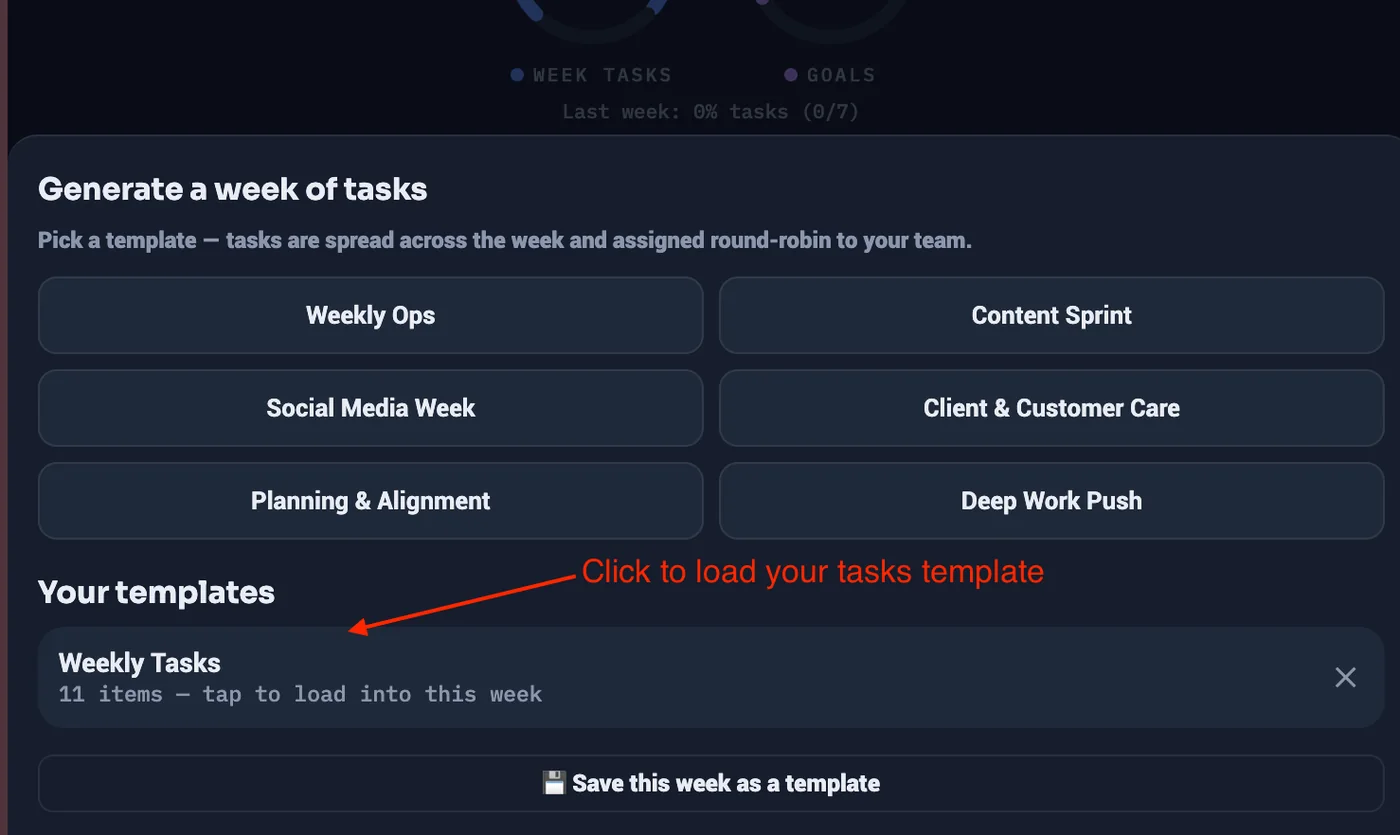
Templates live alongside the ready-made starter packs behind ✦ Generate tasks.To save your week template > Click on the Generate tasks button > Click save this week as a template > Give your week template a name > Ok
Go to “Your templates” and find your template, click to load the tasks from inside the template.
13 · Timezones
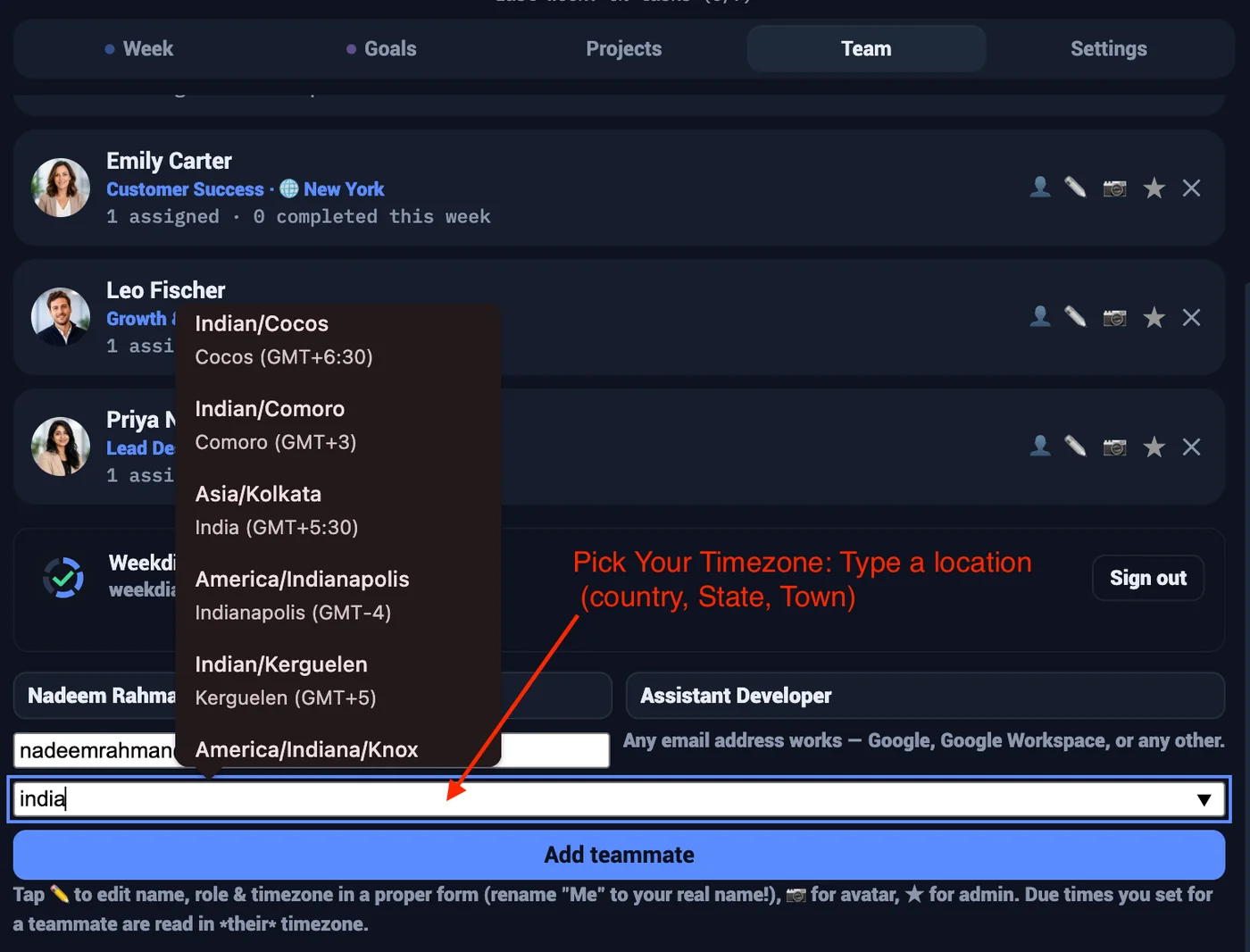
Weekdial sets a timezone per teammate, in the Team tab
When you add someone, there's a timezone field: start typing a city and pick from the suggestions. You can change it later with the ✏️ button beside their name. Leave it blank and Weekdial simply uses that person's own computer time.
Here's why it's worth filling in. A due time you set for a teammate is read in their timezone, not yours. Give Priya in Kolkata a Thursday noon deadline and it means noon for her.
And the task shows both. On the board it reads "due Thu 12:00 their time · yours 07:00" — so you can see their deadline and what it means for your own day, without doing the arithmetic.
On a shared board this is the difference between a team that coordinates and one that keeps missing each other. Nobody converts anything in their head, and nobody misses a Thursday deadline because it was already Friday somewhere.
14 · Notifications and sounds
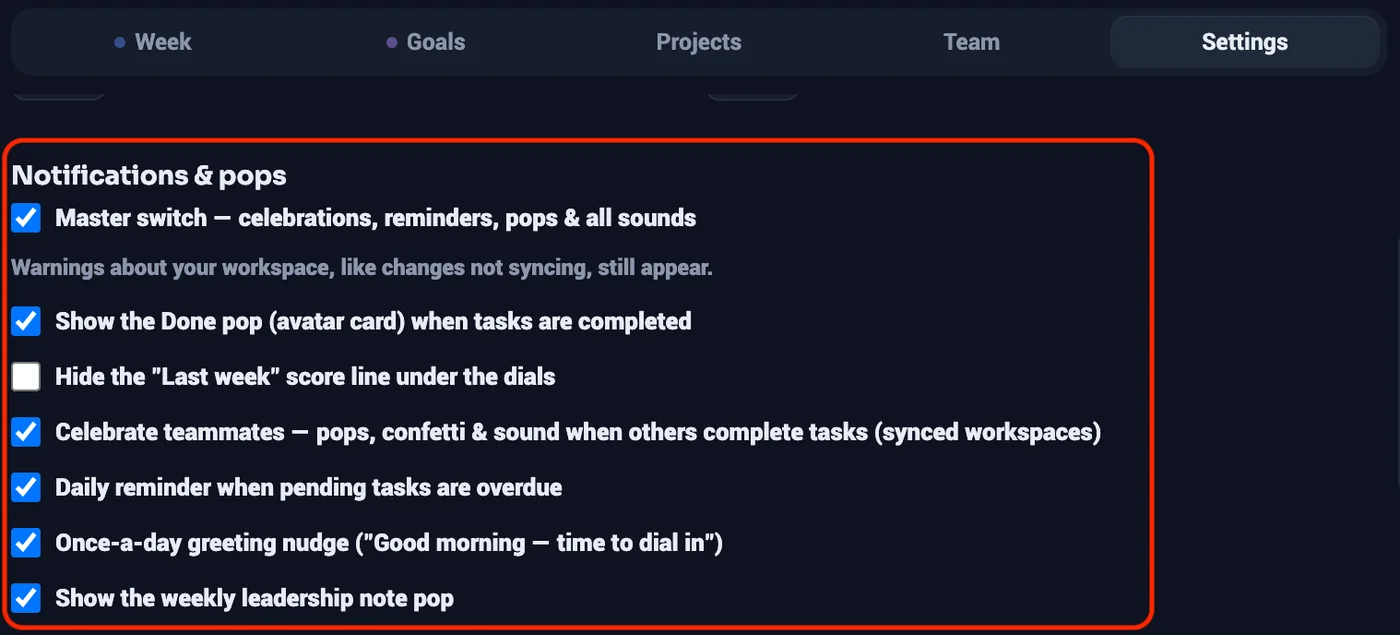
Weekdial is quiet by default and everything is adjustable.
Deadline reminders when a task's deadline approaches or passes
A daily reminder for overdue work, optional
The Done pop — a small card when someone finishes something
Confetti at 100%
Sounds — a choice of chimes, with a volume control, or off
Your own sound. You can upload a sound effect of your own — 3 seconds or shorter and under 300 KB. It stays on your computer and isn't shared with the team, so everyone can hear whatever they like.
The master switch turns off celebrations, reminders, pops and all sounds in one go. One deliberate exception: warnings about your workspace — like changes not syncing — still appear, because those aren't celebrations and you'd want to know.
Note: Weekdial's notifications work in two ways: - In-Panel notification: These are the notifications and pops that show up within the panel itself, like when you tick a task as done, or when you get the weekly leadership note.
- Desktop Notification: These notifications are linked to your system and Chrome browser settings, so make sure you turn on notifications from your system settings, specifically for your Chrome browser. This includes Daily reminders for due or overdue tasks, and the once-a-day greeting nudge. Weekdial notifications are non-intrusive, they are designed to be fun, engaging and help you stay accountable.
15 · Your logo and colours
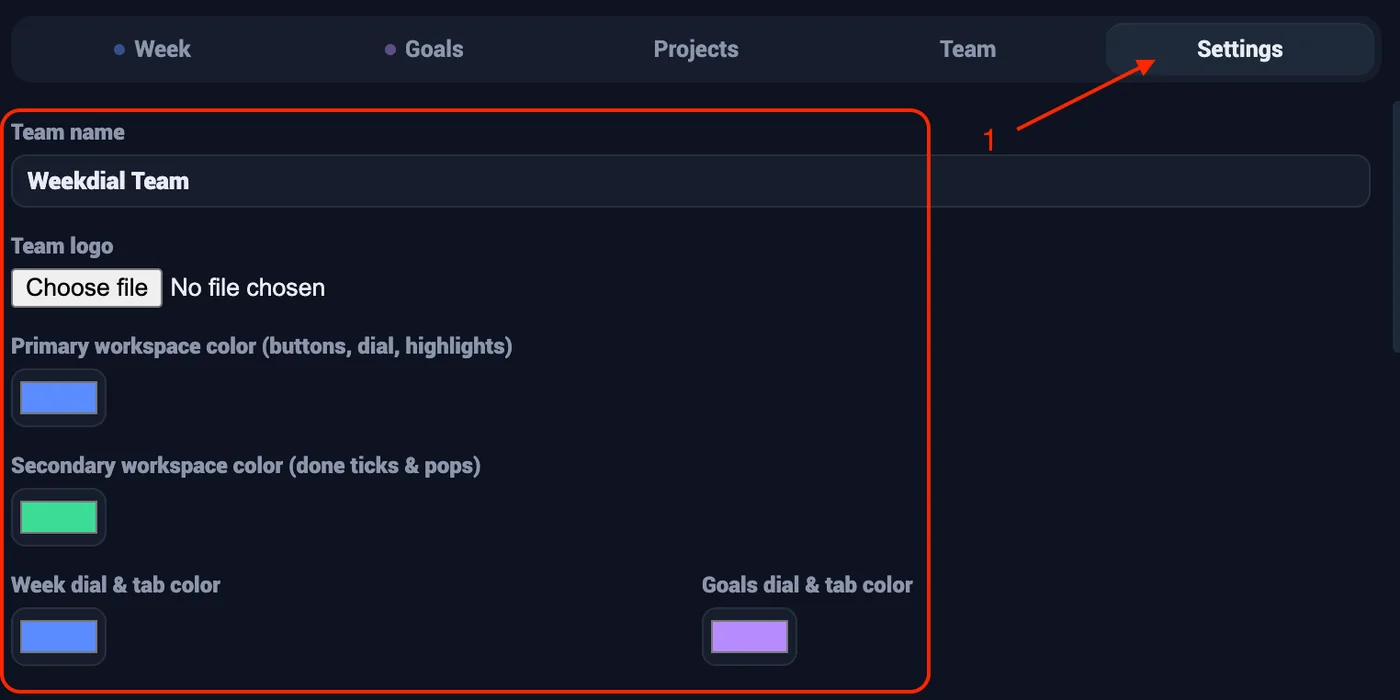
Each workspace has its own name, accent colour and logo. On a shared board, that's set by an admin, and everyone sees it.
It's a small thing that does real work: when someone belongs to three shared boards, the colour tells them which one they're looking at before they've read a word.
Module 4 · Working with a team
16 · Solo and shared workspaces
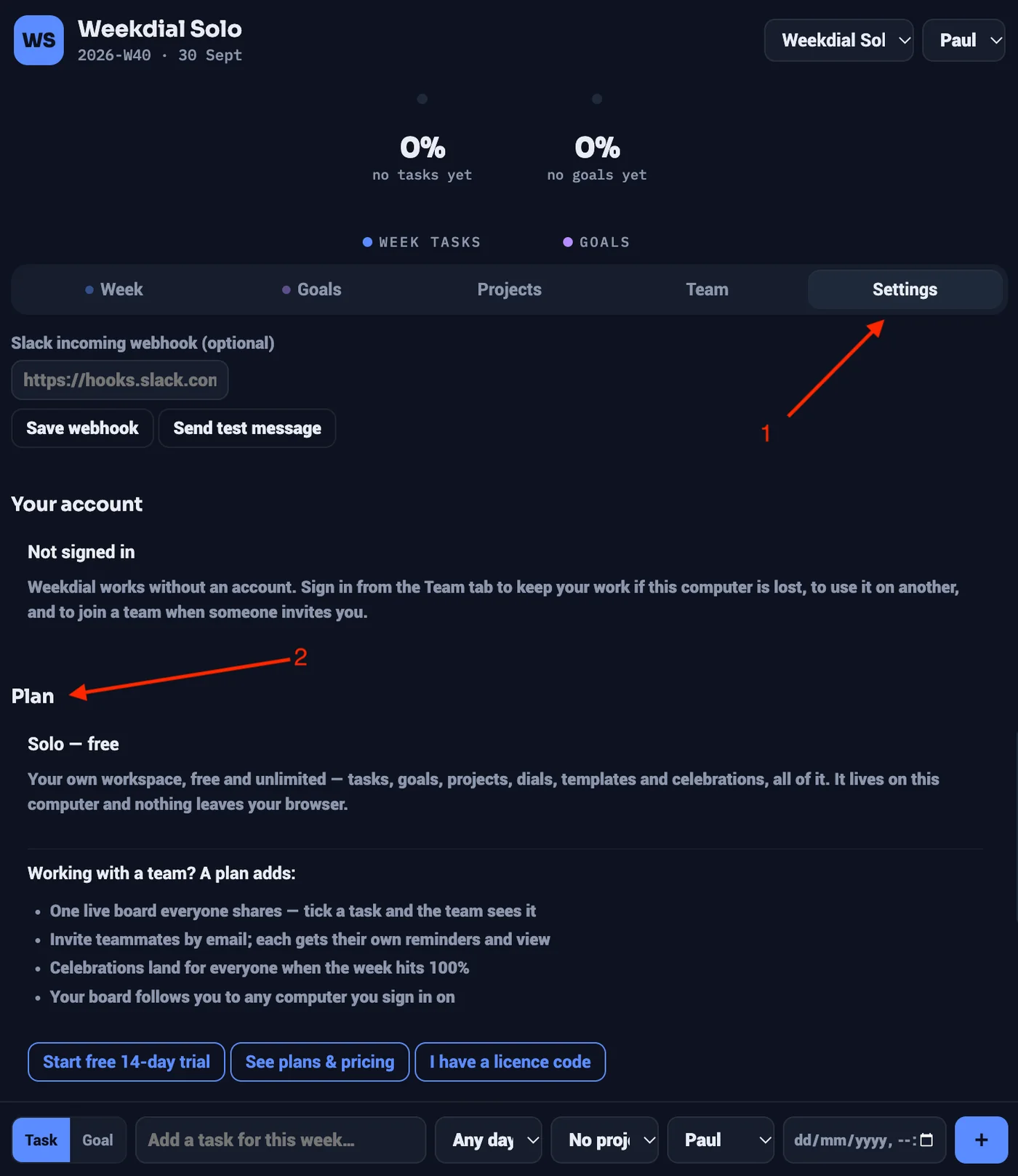
A Solo workspace is free, private, and lives only on your computer. No account, nothing sent anywhere, nobody else can see it. Every account gets one.
A shared workspace is seen by everyone you invite. It lives in the cloud so it can reach your teammates, which means it needs an account and a plan.
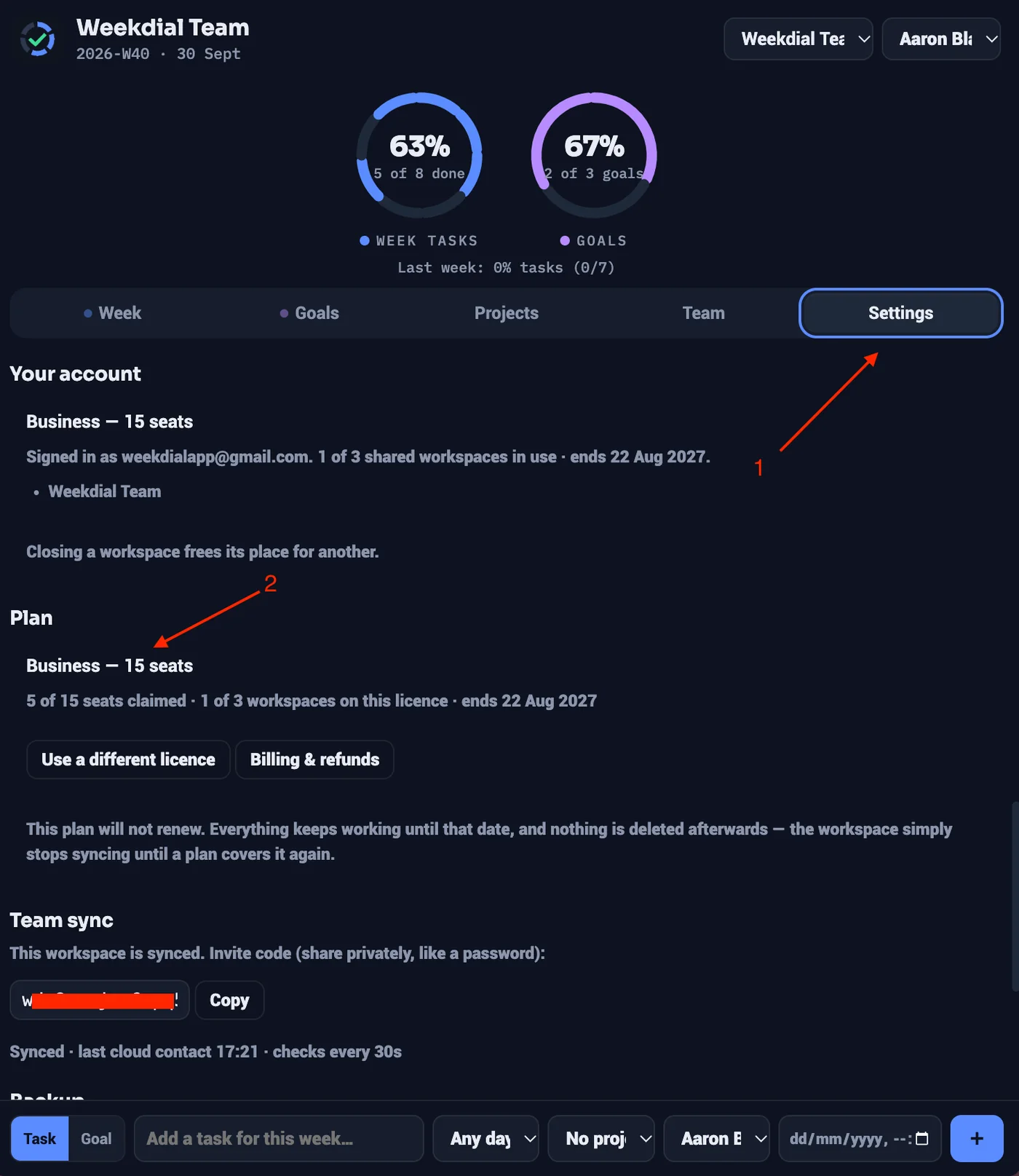
The two work identically. The difference is only who can see them.
A Solo workspace lives only on that computer, so removing Weekdial removes it too. Export a backup from Settings first. A shared workspace is safe either way — it comes back the moment you sign in.
17 · Signing in
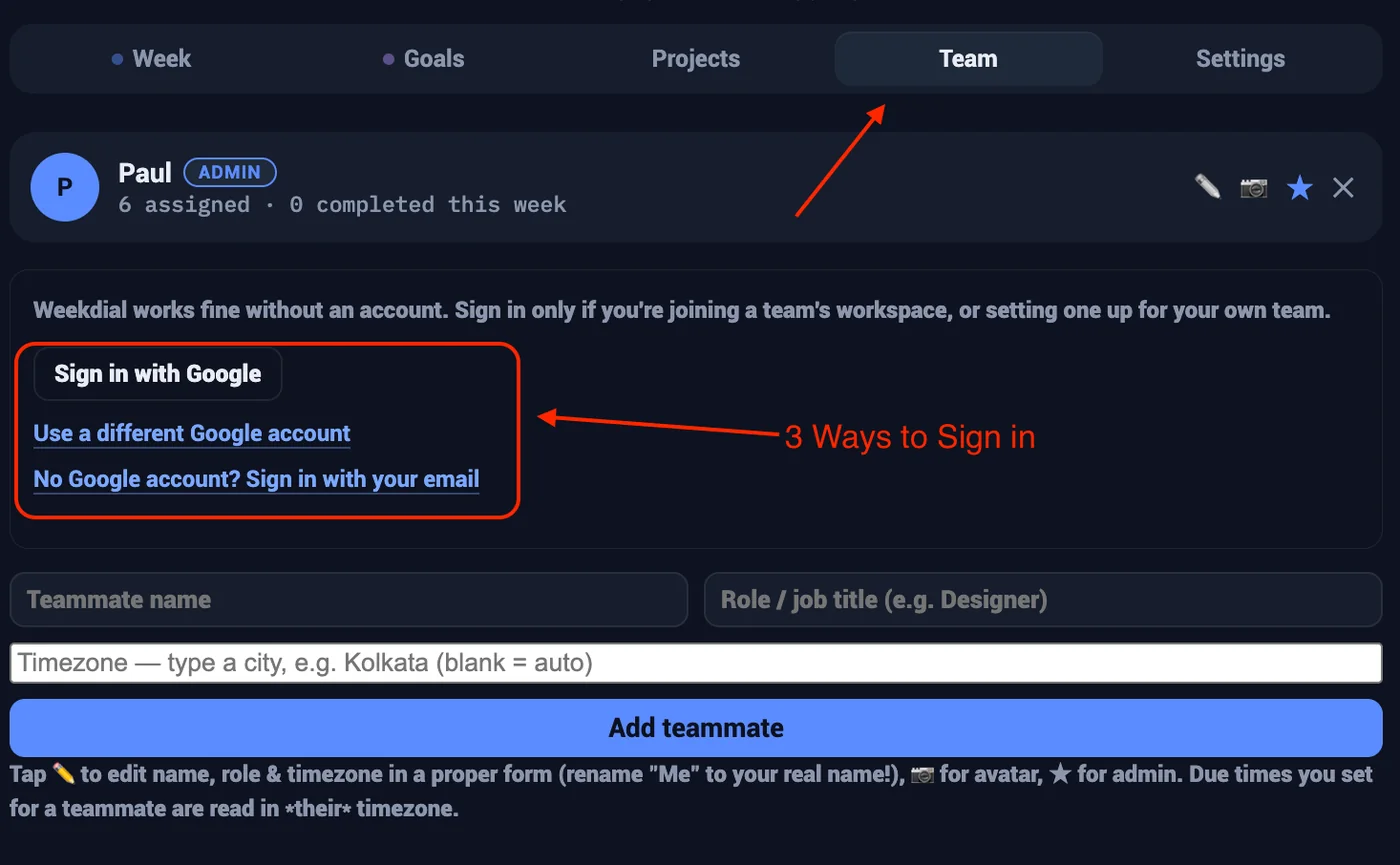
You need an account only for sharing. Solo works without one.
Three doors, one account:
Sign In with Google — one click
Use a different Google account
No Google account? Sign in with your email + OTP (6-digit code) sent to any email address
Whether you are signing in as the Admin of a workspace or as an invited team member, you want to ensure that you are signing in with the email you have used to subscribe to a plan or the email through which the invitation was sent to you, as in the case of an invited team member.
The three methods mentioned above, all arrive at the same account if the address is the same. Use whichever suits you; there's no wrong door.
The code is valid for 10 minutes, and you get 5 attempts. If you need another, there's a minute's wait between sends, and a limit of 5 codes an hour.
Signing in on a second computer finds your seat automatically. There's nothing to move across.
18 · Starting a shared workspace
To share your workspace, it means you have subscribed to a plan and you have your licence details handy. First, you need to ensure that you have signed into Weekdial using the email associated with your plan, this would be the email you used to subscribe to any of the Weekdial plans. A Starter Plan gives you 1 Shared workspace with 5 team member seatsA Team Plan gives you 1 Shared workspace with 10 team member seatsA Business Plan gives you 3 Shared workspace with 15 team member seats per workspace.Once you are logged in from the “Team Tab” Find a workspace that is not yet Shared or click on the Add Workspace button to add a new workspace.
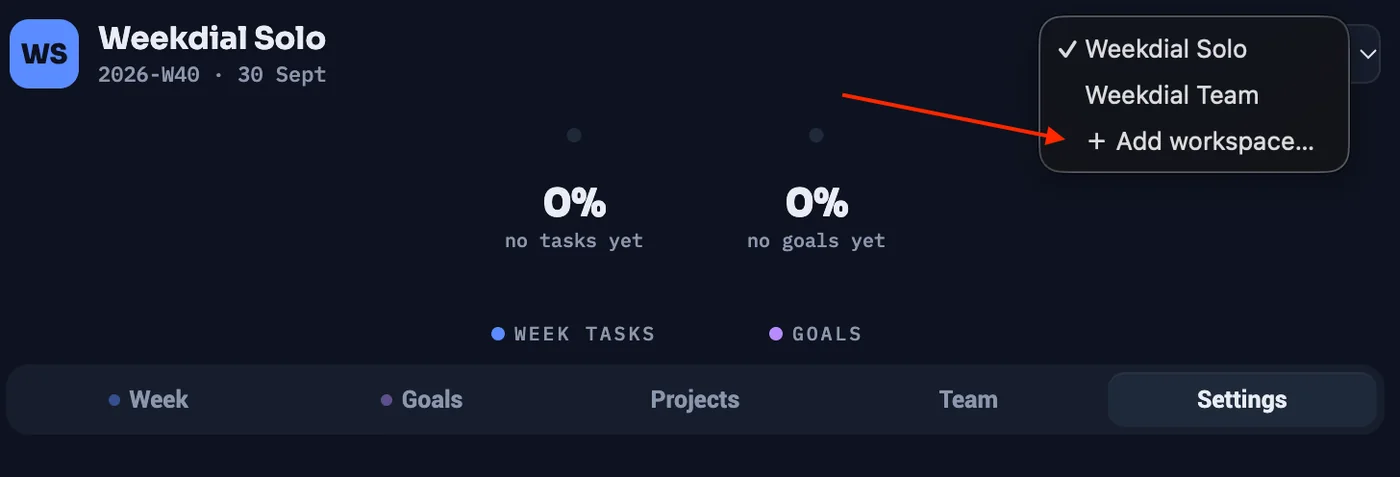
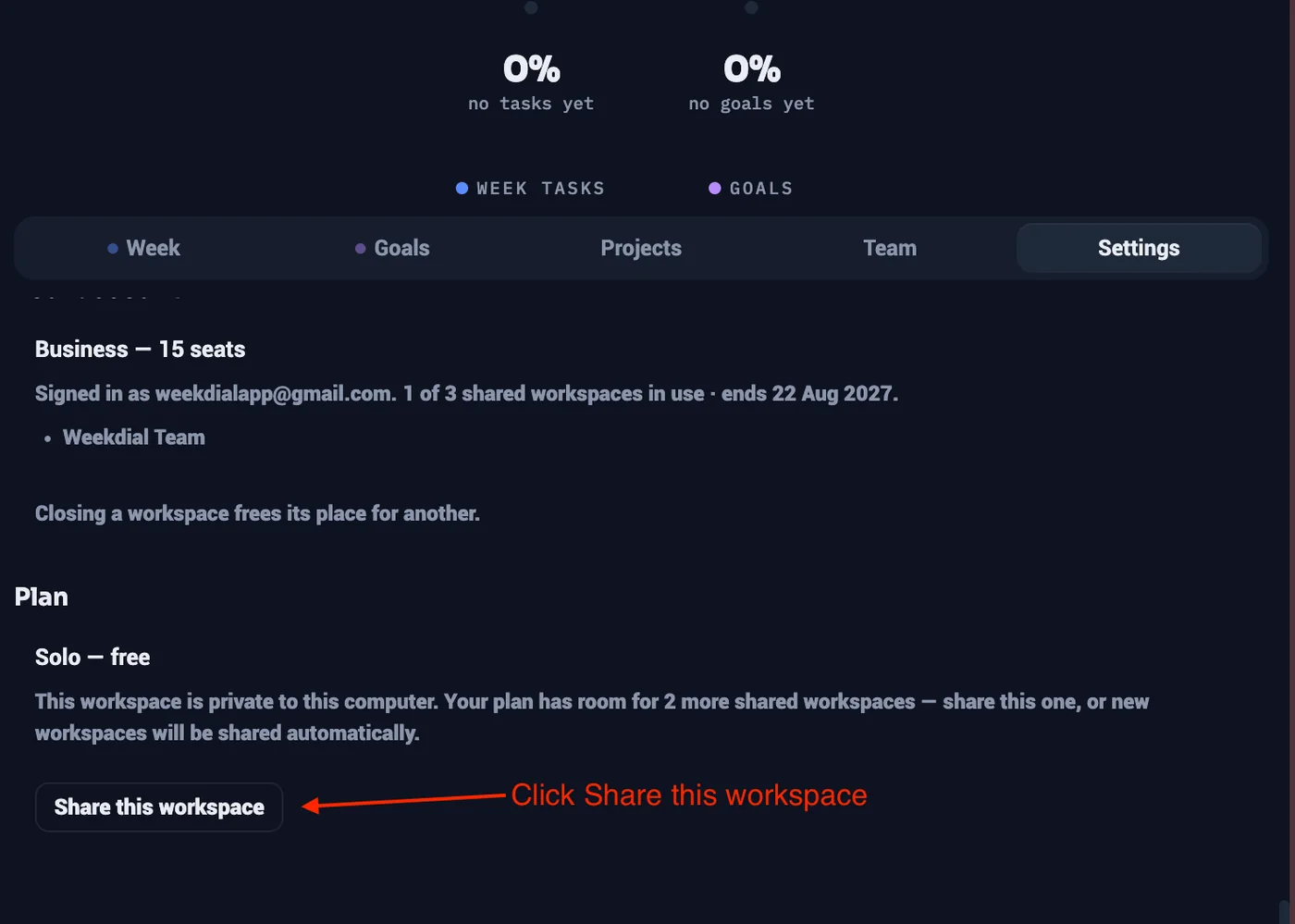
Note: Weekdial gives every user a free workspace for personal use on their workstation, so for example, if you subscribed to a starter plan, you will be able to have 1 shared workspace + 1 Free workspace in total. Next go to “Settings”, Scroll down to the plan section and click on “Share This Workspace” you're on.
The moment it's shared, it exists in the cloud and can be seen by anyone you invite. You're its admin. Weekdial will automatically verify your account licence details and share that workspace automatically, now the workspace is LIVE and you can start inviting your team members to that shared workspace to collaborate.
Your Solo workspace is still yours, separate and private, alongside whatever you share.
19 · Inviting people
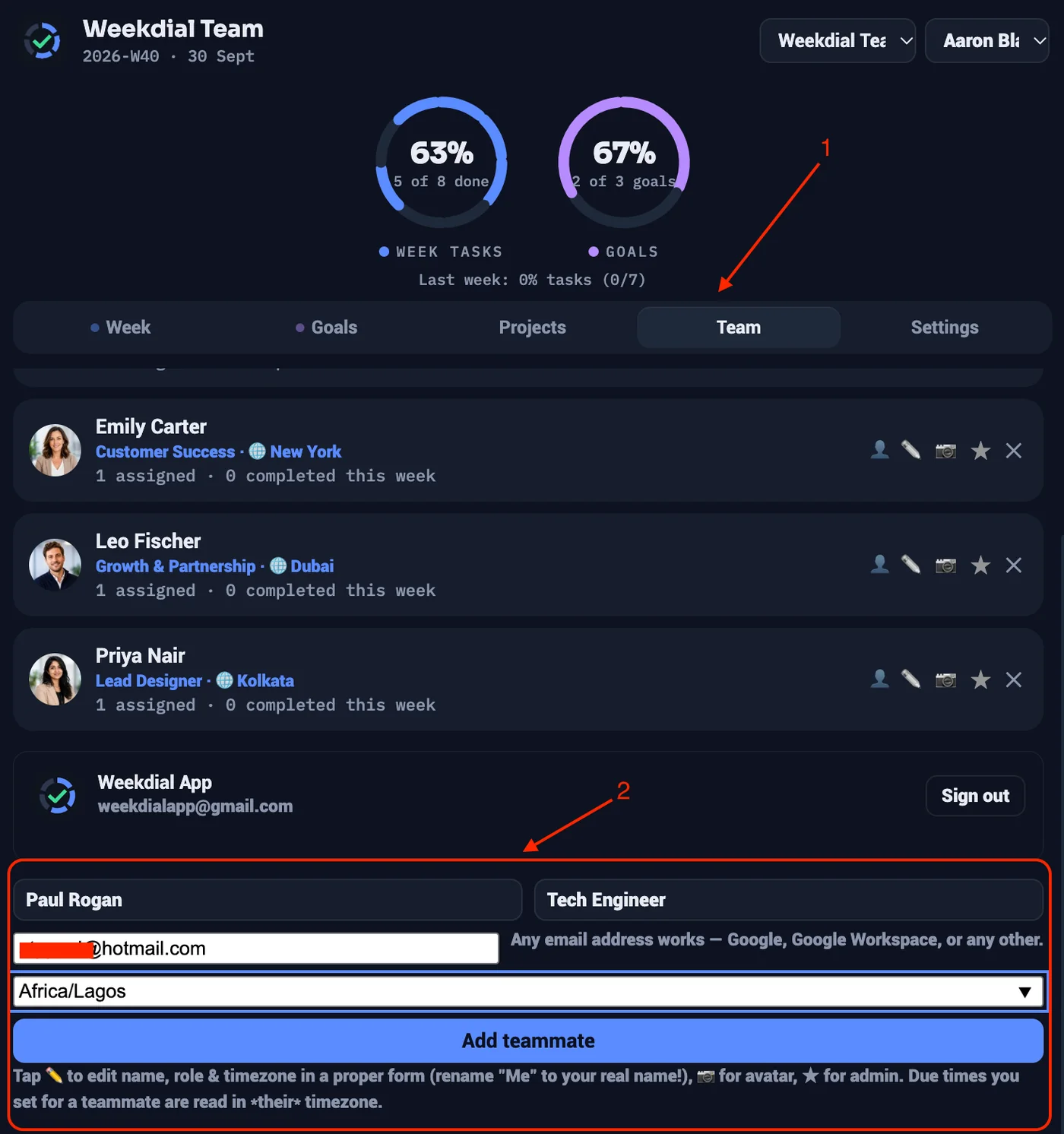
Invite by email address, from the Team tab. Any address works — with or without a Google account, since they can sign in with a code instead.
A seat is one person in the workspace. Your plan sets how many. An invitation holds a seat from the moment you send it, so a seat can't quietly be taken twice while someone's deciding.
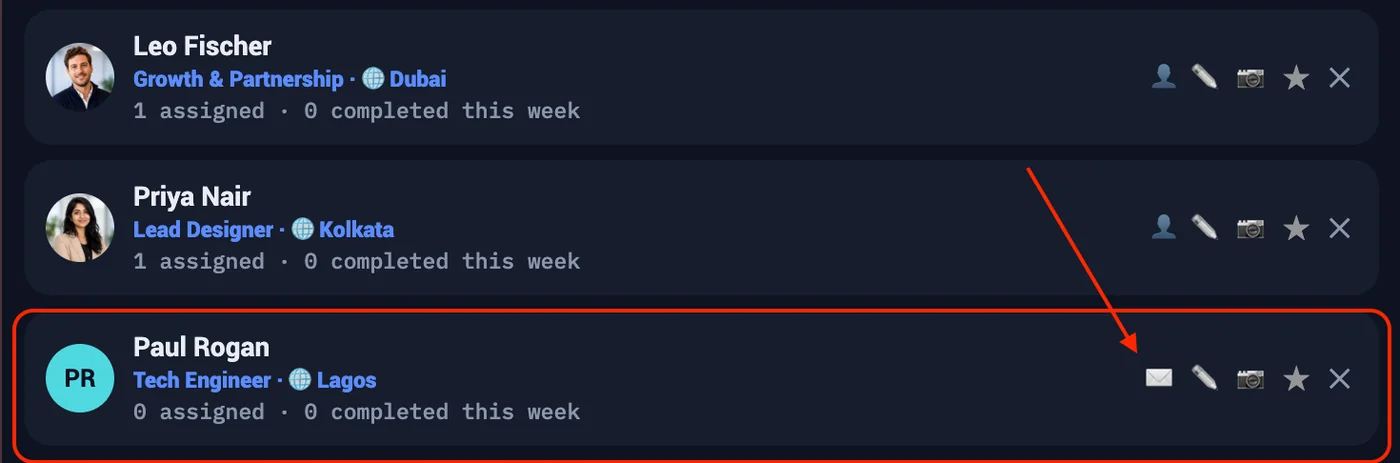
You can see whether an invitation was delivered or bounced, and withdraw one that's no longer needed — which frees the seat again. Please ensure that you enter your team member email correctly into the email field, before clicking Add teammate, which automatically sends them an invitation to collaborate and Join the workspace.
Note: invitations are limited to 2 per address per day, 5 minutes apart. That's deliberate. A domain that sends bursts of email gets marked as spam, and then nobody's invitations arrive.
20 · Joining a workspace
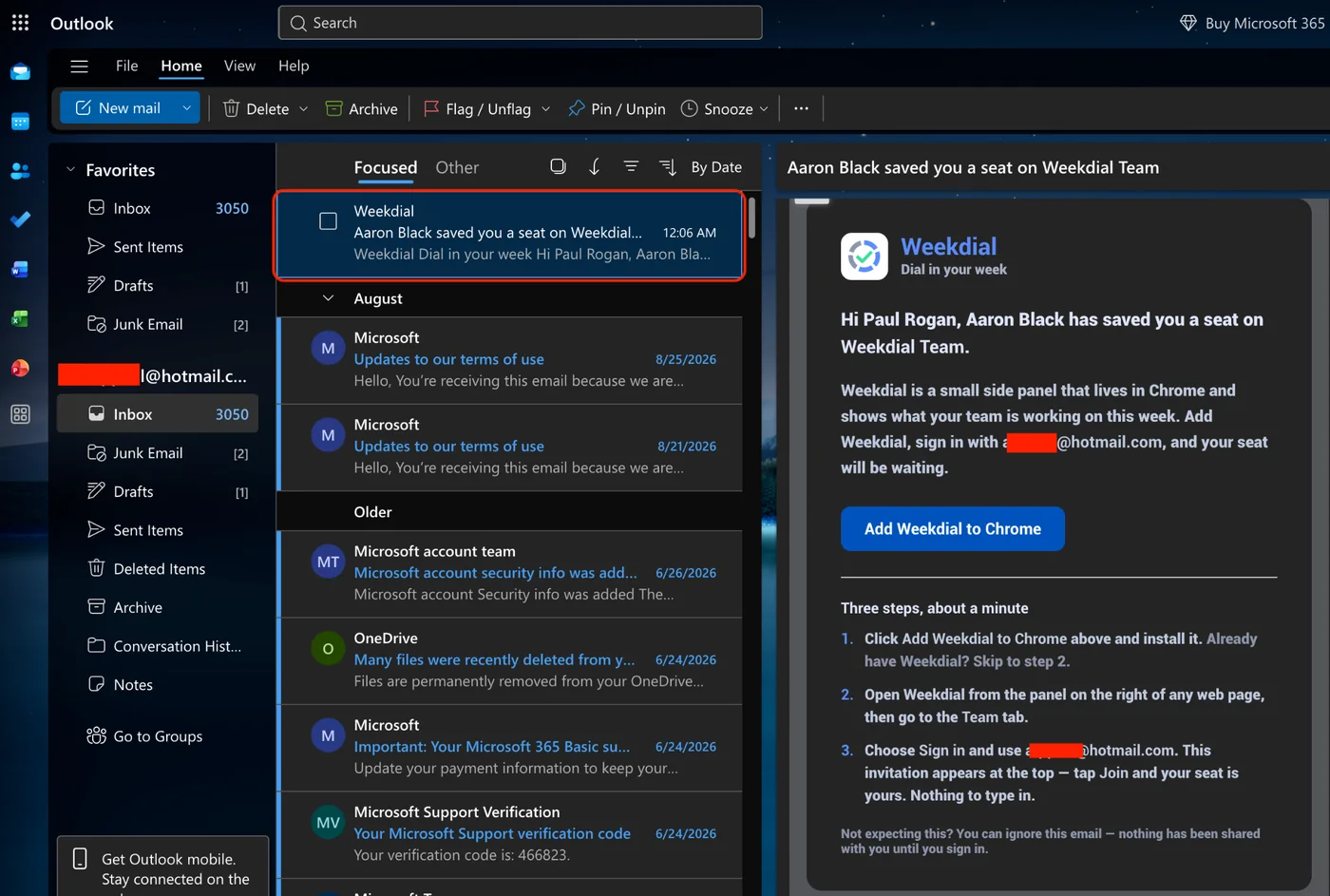
You'll get an email with a link. Install Weekdial, sign in with the address the invitation was sent to, and your seat is waiting — Weekdial recognises you and seats you automatically.Please check your spam or junk folder, in case the invitation landed there. Also mark the email as “Not Junk” or “Not Spam”
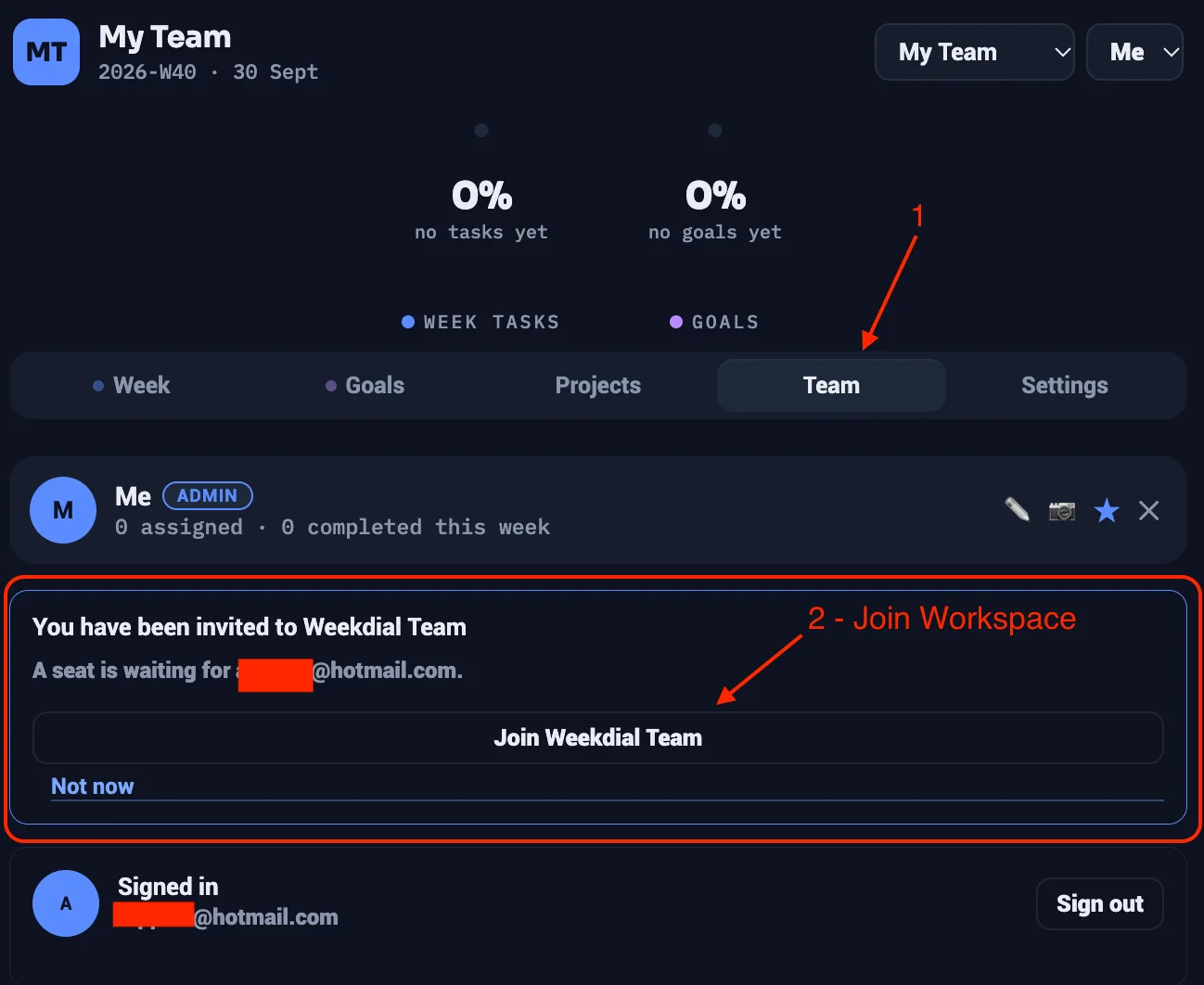
If you sign in with a different address, Weekdial won't find a seat for you, because the seat is held for the address your admin invited. Sign in with the invited address, or ask them to invite the one you use.
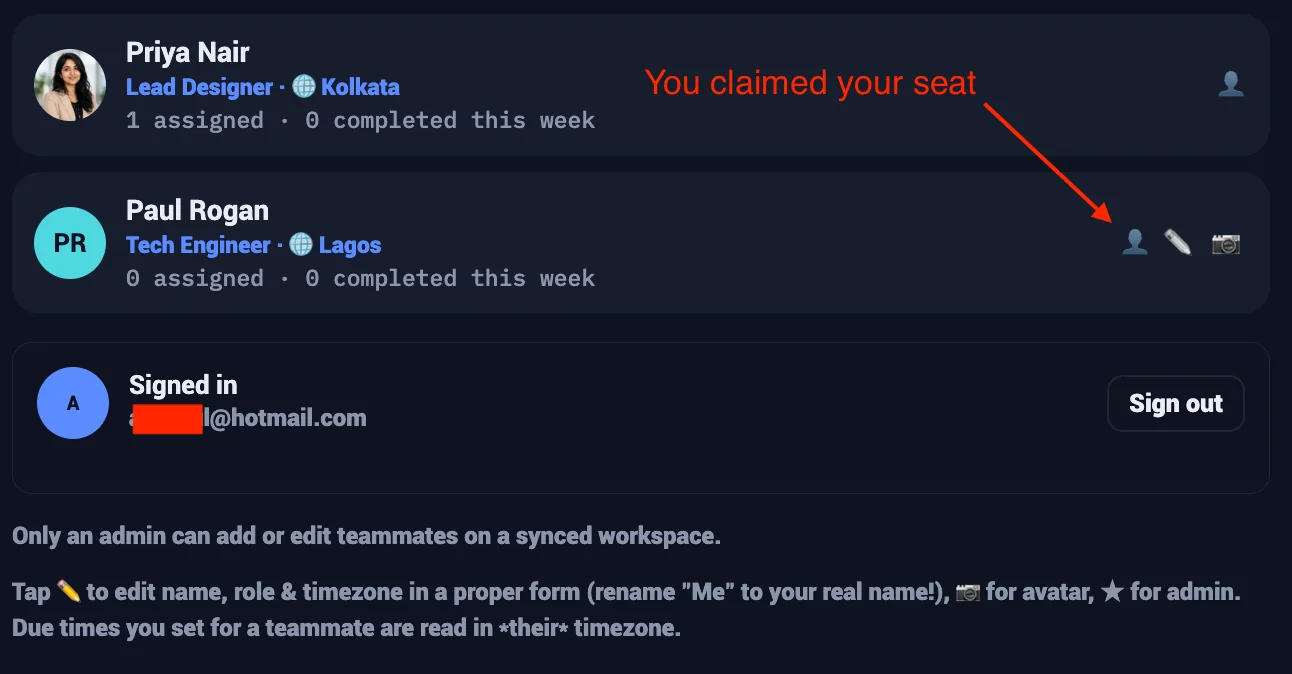
Once you're in, the week is simply there.
21 · Everyone in their own timezone
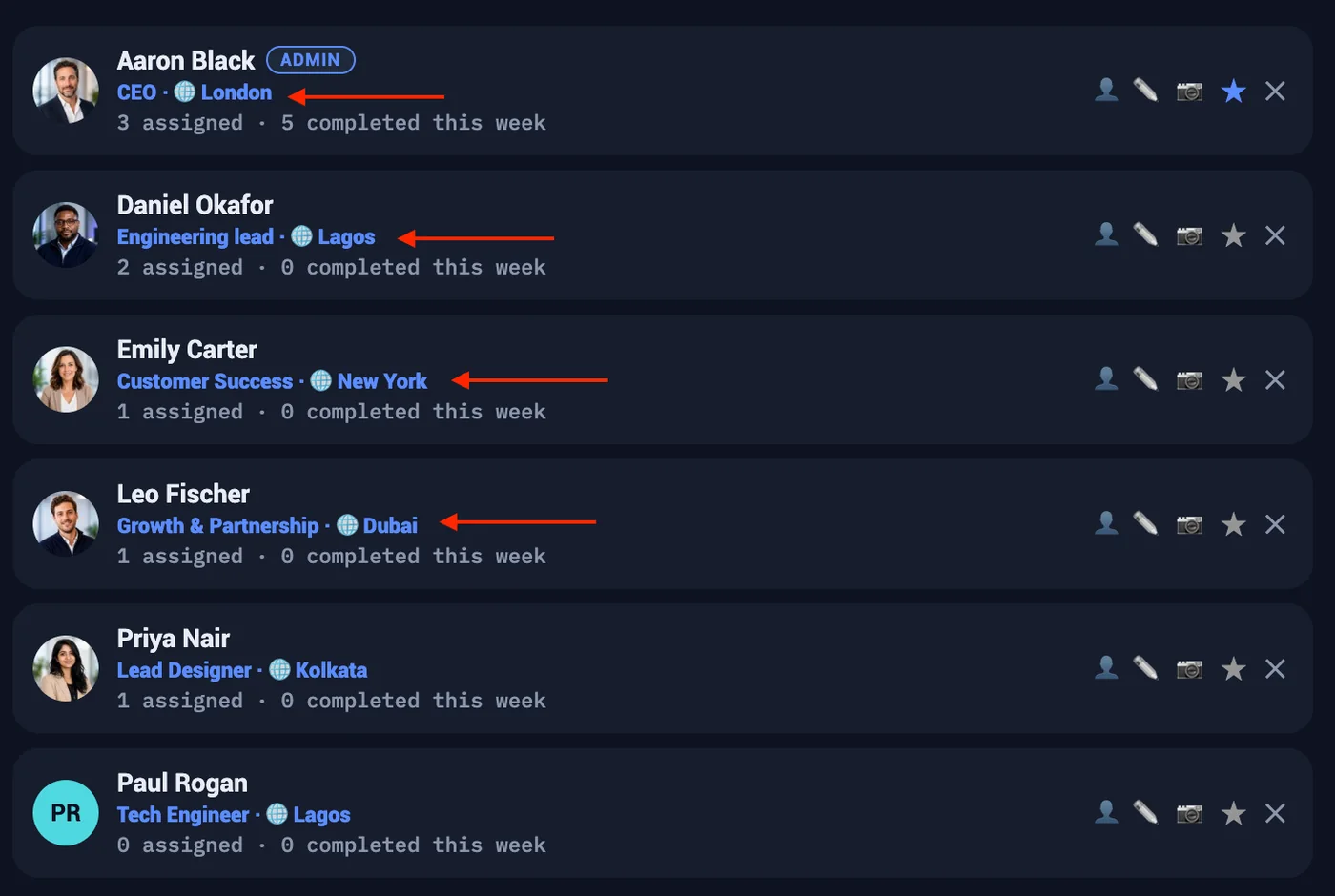
The board is one week, shared. What each person sees is their own version of it.
Deadlines are shown in each person's own time. Days are their days. Nobody does mental arithmetic, and nobody misses a Thursday deadline because it was Thursday somewhere else.
22 · Leaving, removing and closing
Three different things, and Weekdial says which happened.
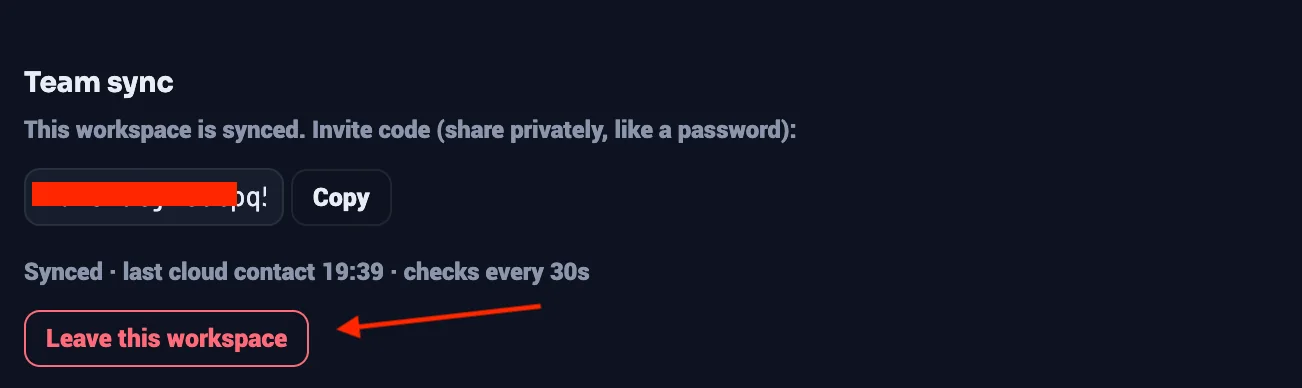
Leaving is your own choice. Your row goes, your seat frees, and your copy is removed from your computer. Admins can't leave — it would strand the workspace.
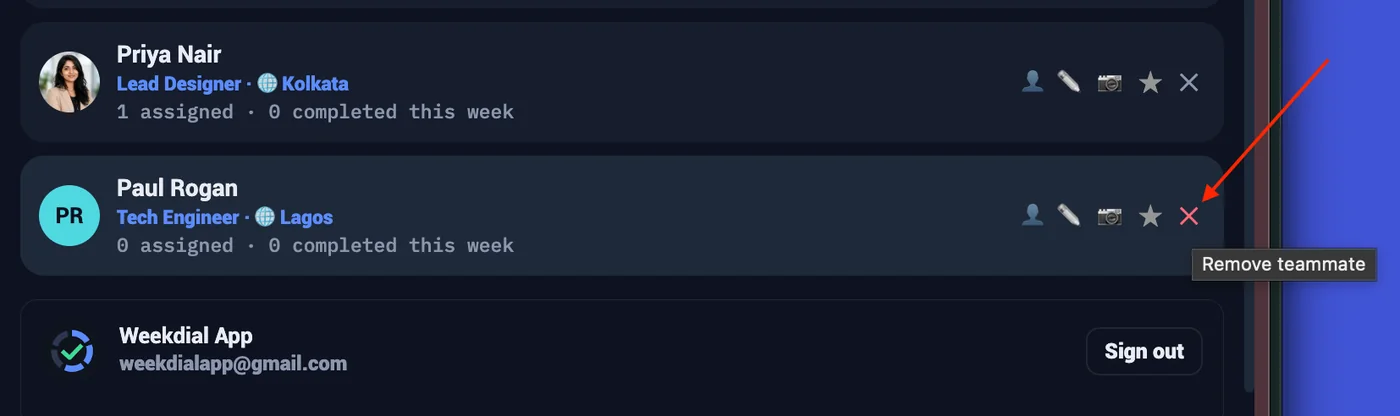
Being removed is an admin's decision. You're told, and your copy is kept on your computer for 7 days with an export offered, so nothing is lost while you sort it out. Rejoining needs a new invitation.
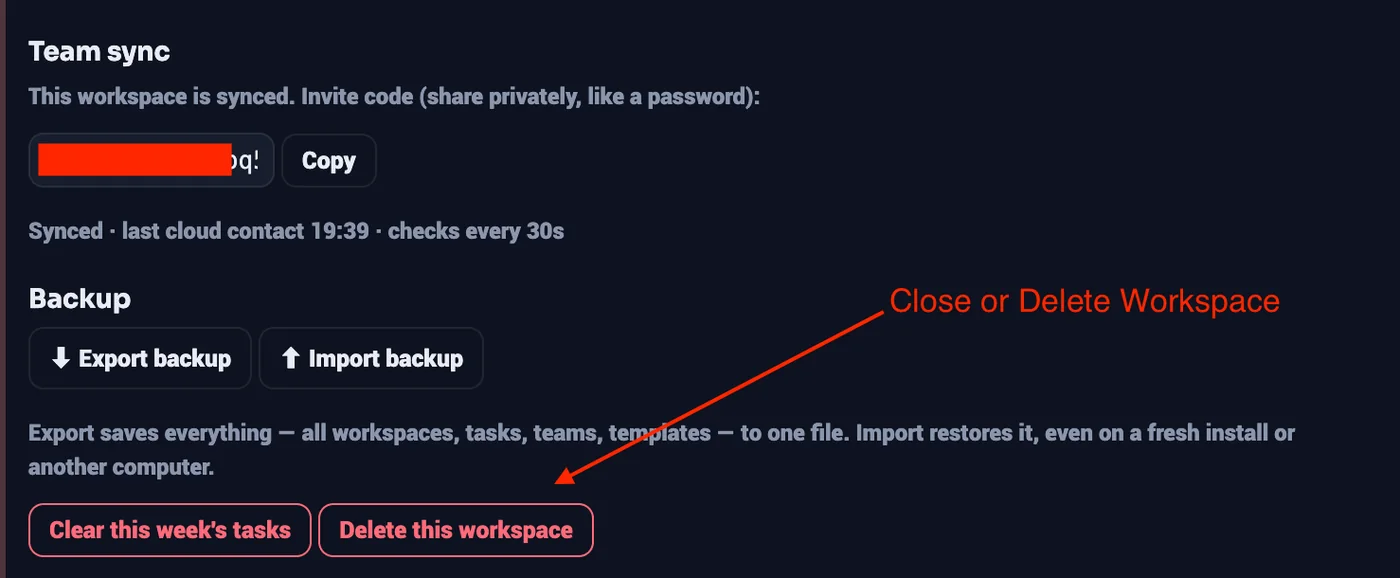
Closing ends the workspace for everyone. It's not the same as being removed, and Weekdial doesn't pretend it is — there's nothing to be re-invited to.
The thread through all three: nobody loses their own work. Whatever happens to the sharing, the copy on your computer stays yours.
Module 5 · Getting something out of it
23 · The weekly report
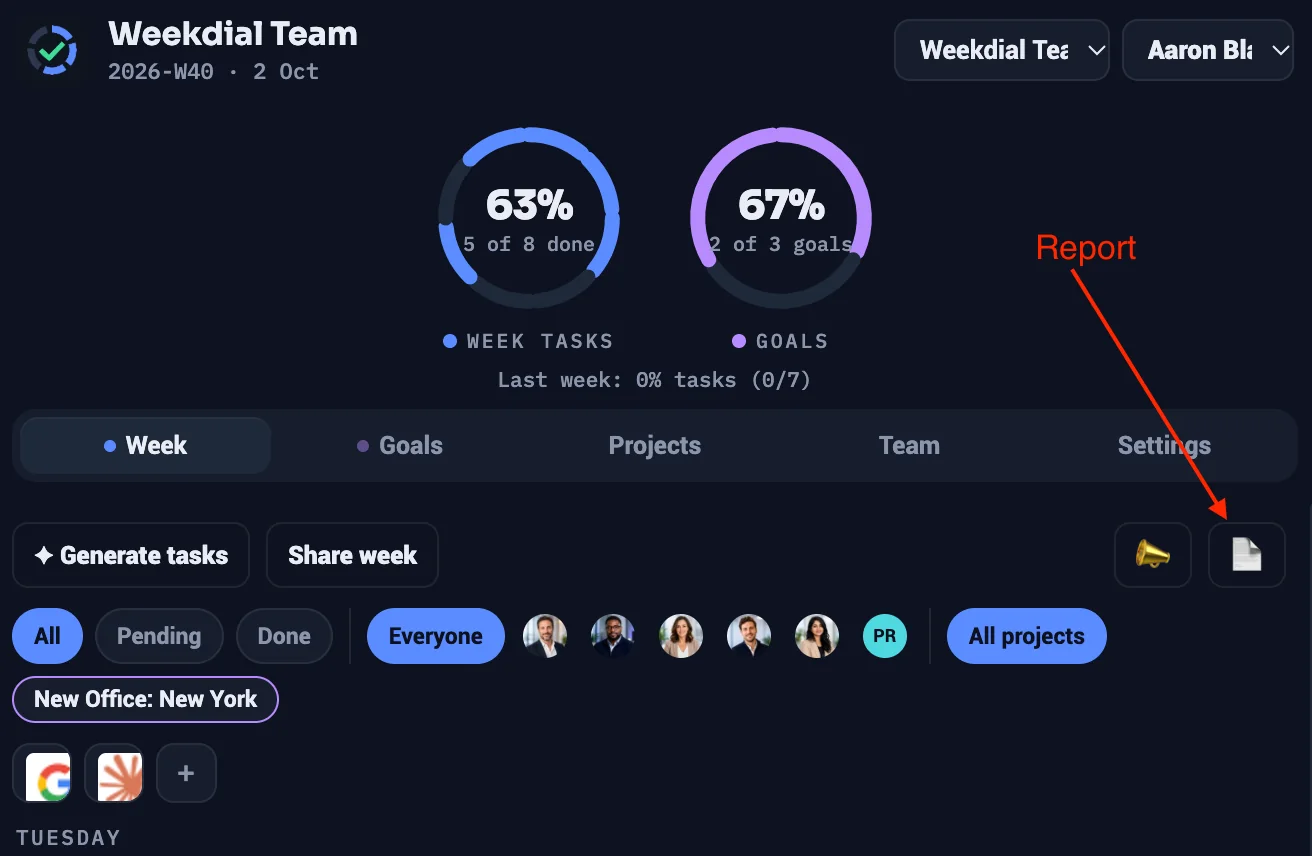
A written summary of the week, generated from the board: the percentages, what was completed grouped by project, what's still open, and a breakdown by person.
Where it can go: copy it, send it to WhatsApp or Telegram, post it to Slack, or save it as a PDF.
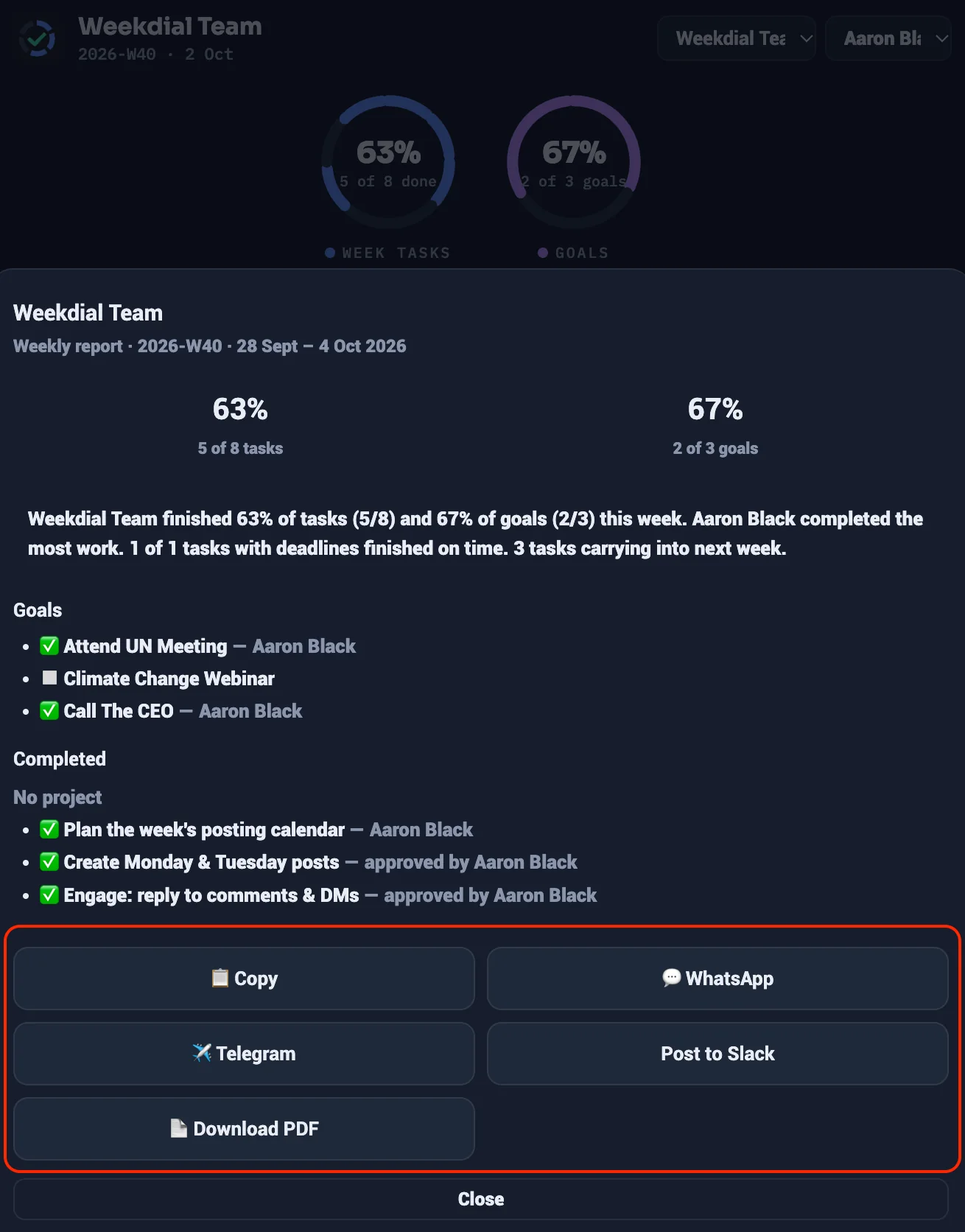
It respects your filters. Filter to one person or one project and the report covers exactly that — and says so, so nobody mistakes a slice for the whole week.
Note: when you filter by status, the report shows counts rather than percentages. A "completed only" view would otherwise report 100%, which is true of the filter, but might not reflect the whole week.
24 · Slack notifications
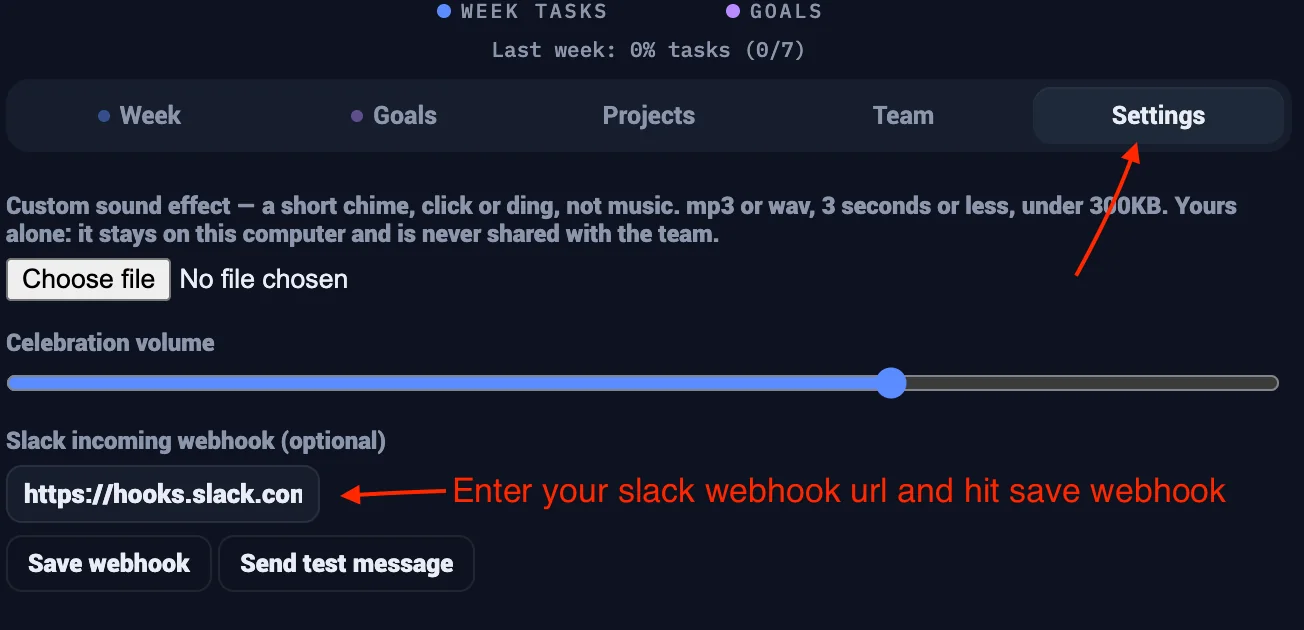
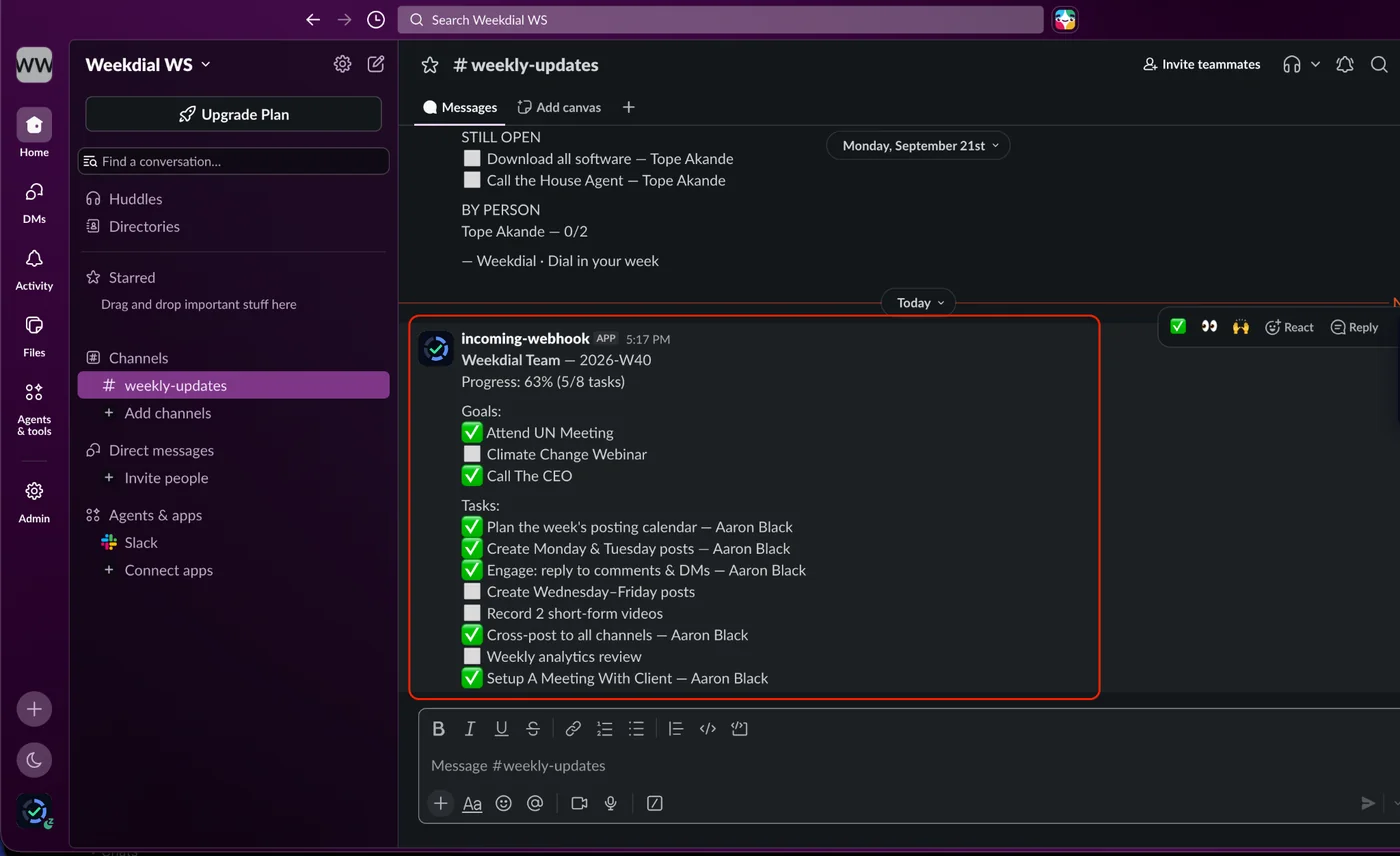
Connect a Slack webhook in Settings and Weekdial can post to a channel — so the week's progress shows up where your team already talks, without anyone opening the panel.
There are other channels, such as WhatsApp, Telegram that you can use to share your team’s progress in addition to slack. Slack however requires you to set up a webhook.
You can either use the Share Week or Report, to post updates to your Slack channel.
25 · Export and backup
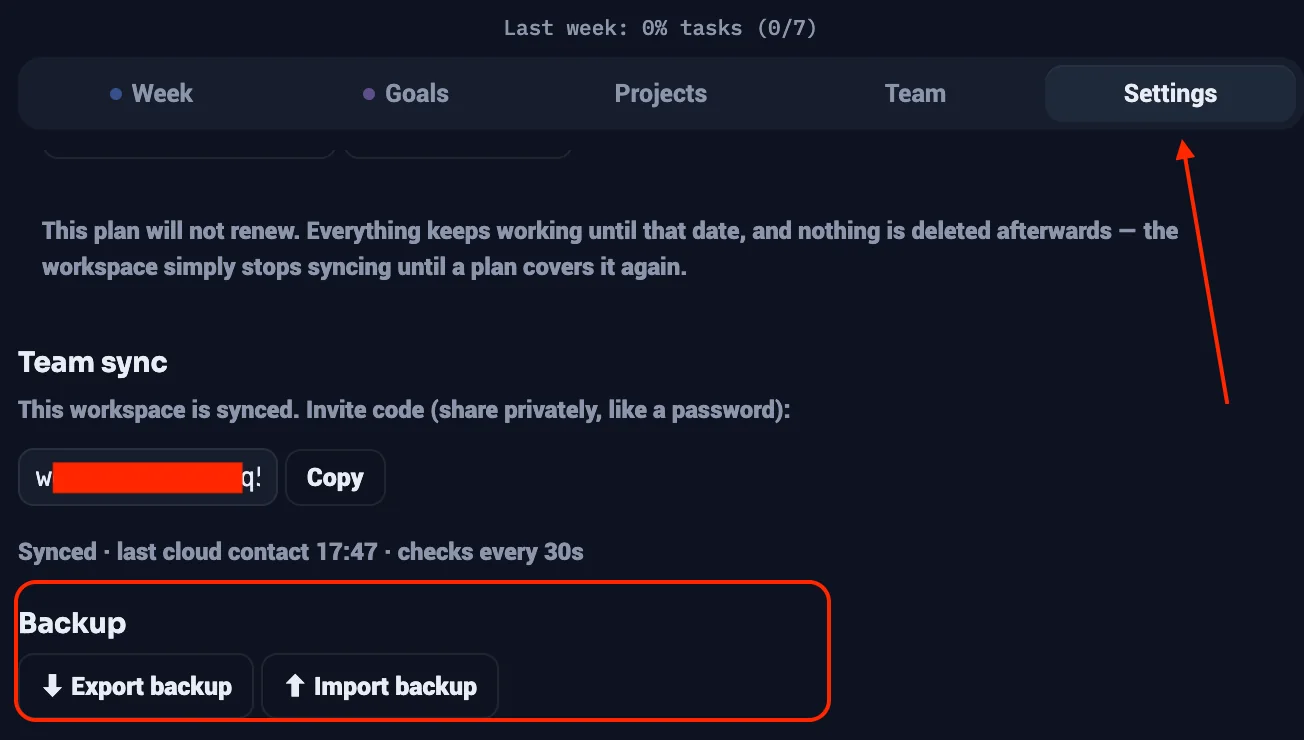
You can export your workspace data and import it again at any point. Take note that importing replaces your own workspaces — your Solo boards and any shared board you administer. Shared workspaces you were invited to are left untouched. And a backup never restores plan details: those always arrive fresh from the cloud.
A full backup — everything, restorable into Weekdial.
Take a backup before anything drastic, especially before removing the extension. Your work is always yours to take with you; this is how you take it.
Module 6 · Plans and billing
26 · What each plan includes
| Plan | Price | Seats | Workspaces |
|---|---|---|---|
| Solo | Free Forever | You | 1, private to your computer |
| Starter | $97/Year | 5 | 1 Shared |
| Team | $179/Year | 10 | 1 Shared |
| Business | $297/Year | 15 | 3 Shared |
Priced per team, not per person. Hiring someone doesn't raise your bill until you run out of seats.
Every paid plan keeps your free Solo workspace as well as the shared ones.Visit The Pricing Page
27 · The free trial
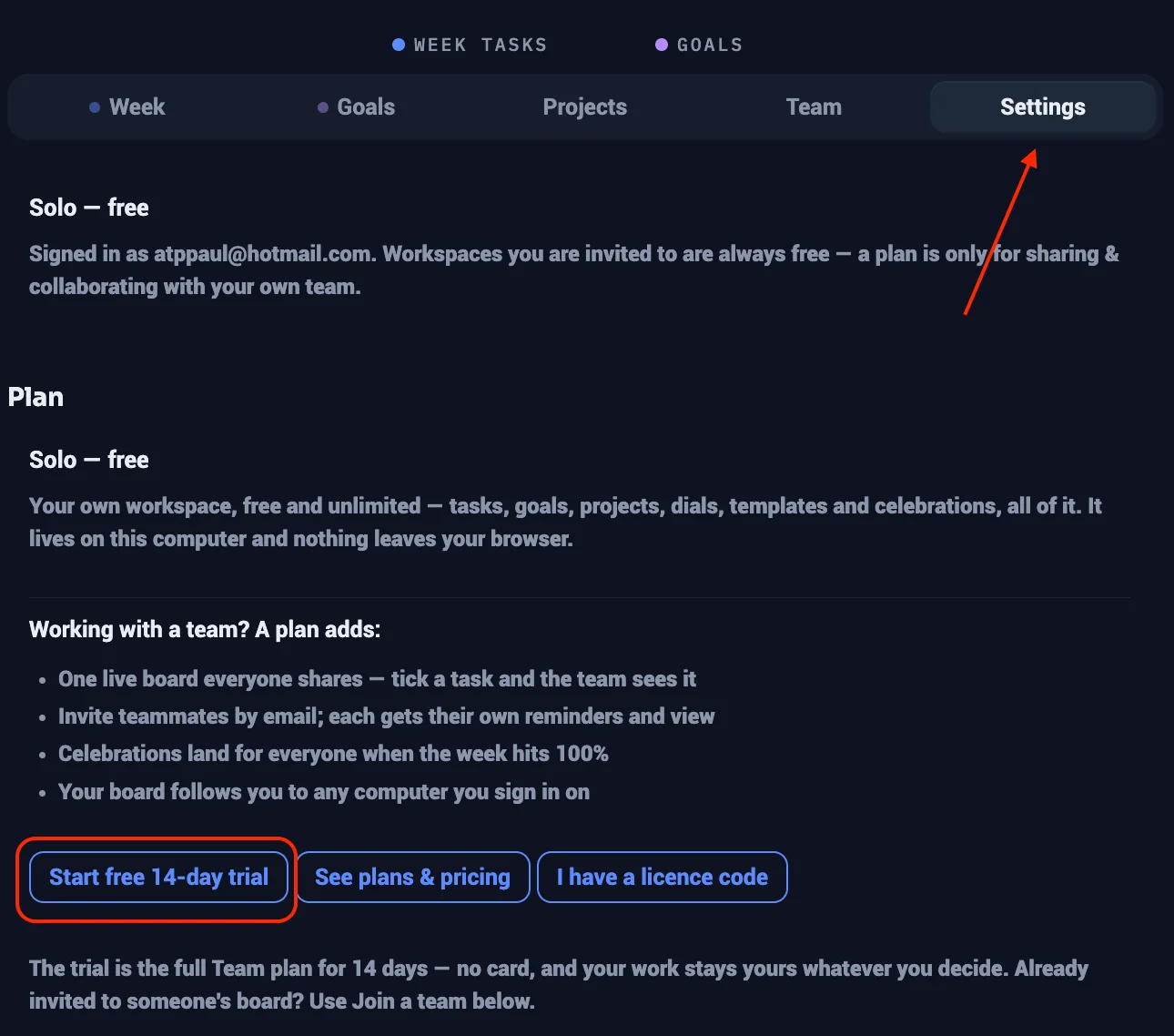
14 days of the full Team plan — 10 seats, one shared workspace. No card, nothing to cancel.
Note: There is one trial per account, and it's for accounts new to Weekdial. If an account has held any plan before — paid, lapsed, refunded, or a previous trial — it chooses a plan rather than trialling again.
You'll be told when the trial is nearly over — a notice three days out, and another the day before it ends, so it never finishes as a surprise.
28 · Activating a plan
A plan is attached to the email address you bought with. Sign in with that address and Weekdial finds it. There's nothing to type.
Every plan also has a code, sent in your welcome email. It's there for when you want the plan on a different address than the one you paid with — a work account rather than a personal one, say. Enter it in Settings.
One account holds one active plan. Applying a new one retires the old.
Various Plans Scenarios:
What you see in the Plan card depends on where you are starting from. Find your situation below.
One thing that applies to all of them: a licence belongs to your account, not to a computer. So you must be signed in before any of this works, and once you are, your plan follows you to any computer you sign in on.
A. You are new to Weekdial, on your own workspace
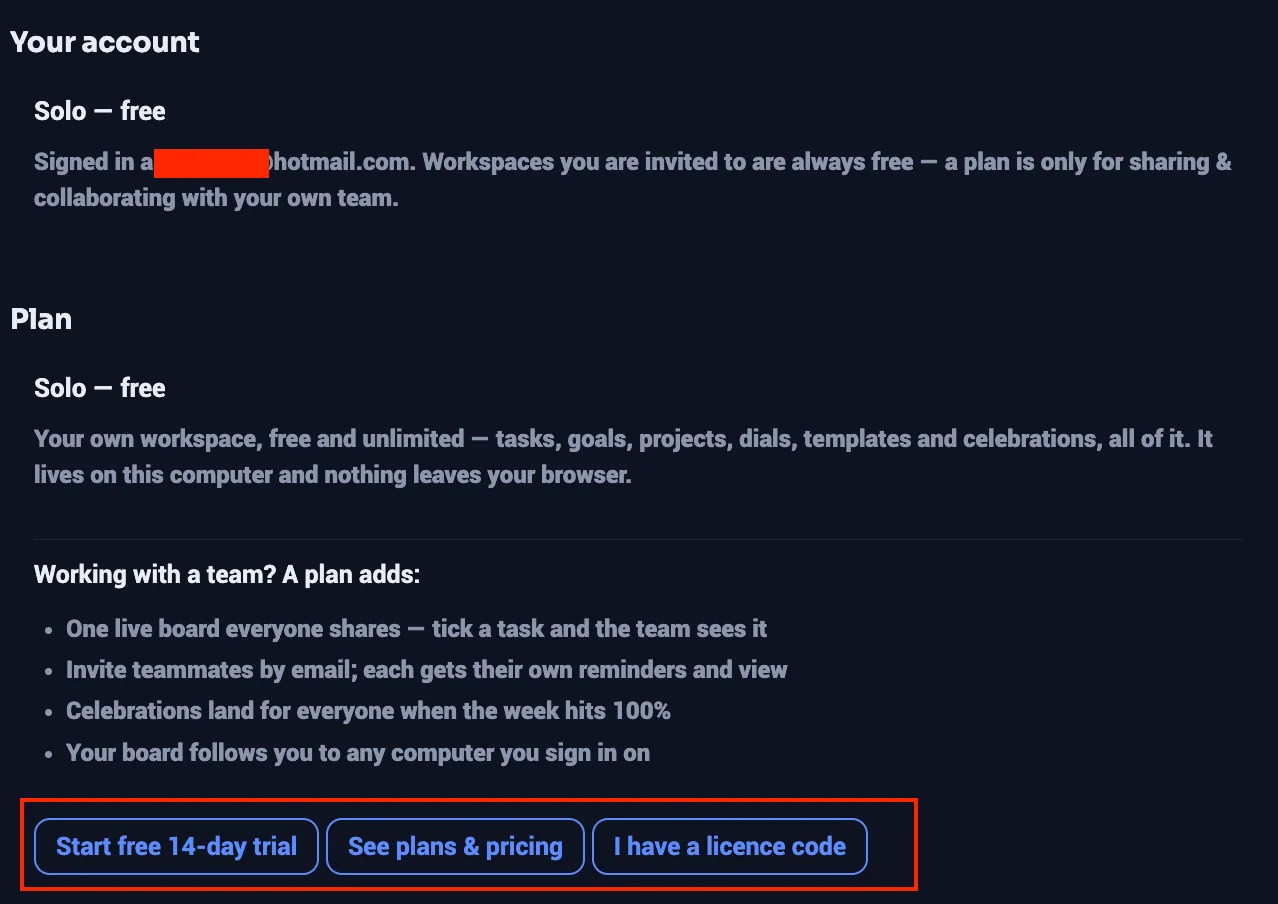
The card reads Solo — free, and you get three buttons:
Start free 14-day trial — the full Team plan, 10 seats, no card. One per account, ever.
See plans & pricing — opens weekdial.app/pricing in a new tab.
I have a licence code — for when you have already bought.
Choose I have a licence code if you bought from somewhere other than the website, or bought with a different email address than the one you signed in with. It asks for a code in the form WD-XXXX-XXXX-XXXX, which is on your receipt.
If you are not signed in yet, the trial button still appears — click it and Weekdial will tell you to sign in first, because a trial has to attach to an account.
B. You already have a plan, and the workspace is still private
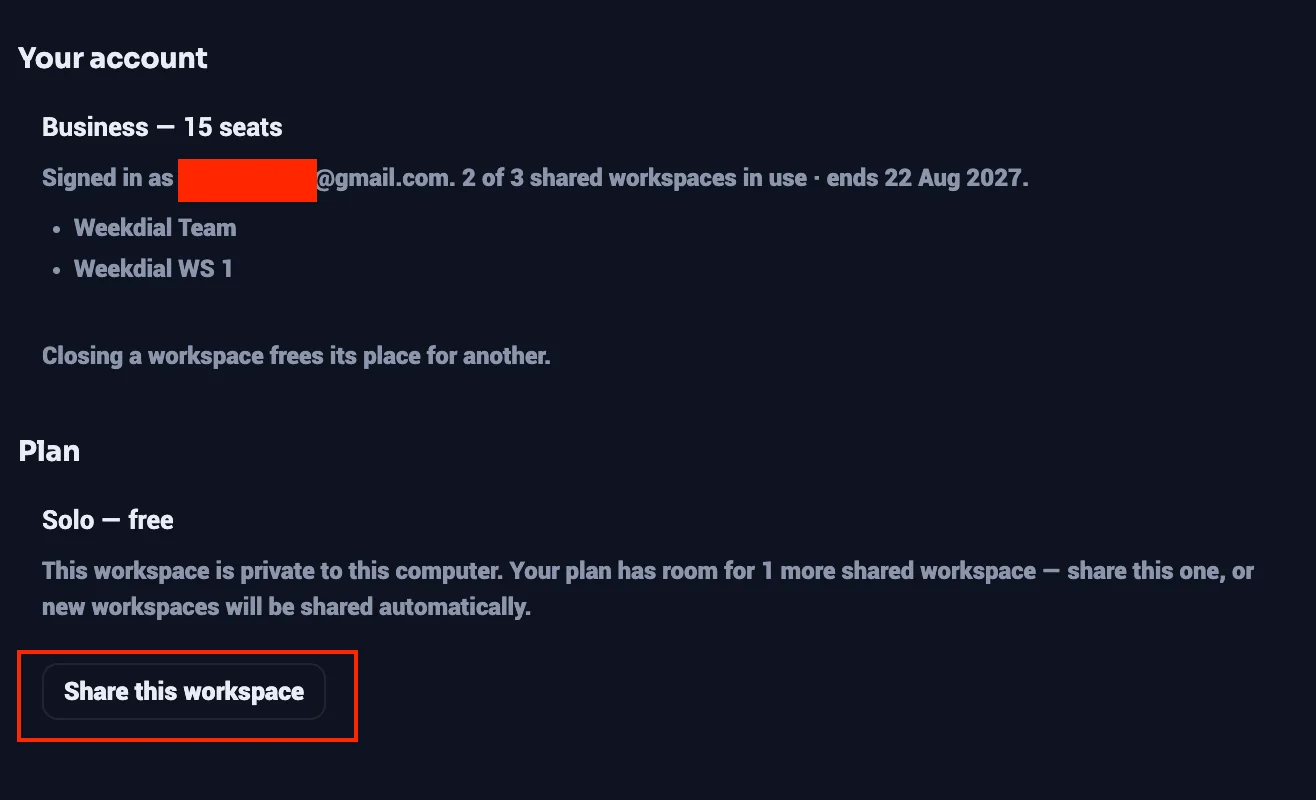
The card tells you how much room your plan has, and offers one button: Share this workspace. No code, no purchase — one click and this workspace joins your plan.
New workspaces you create after this are shared automatically.
C. You have a plan, but every shared workspace on it is in use
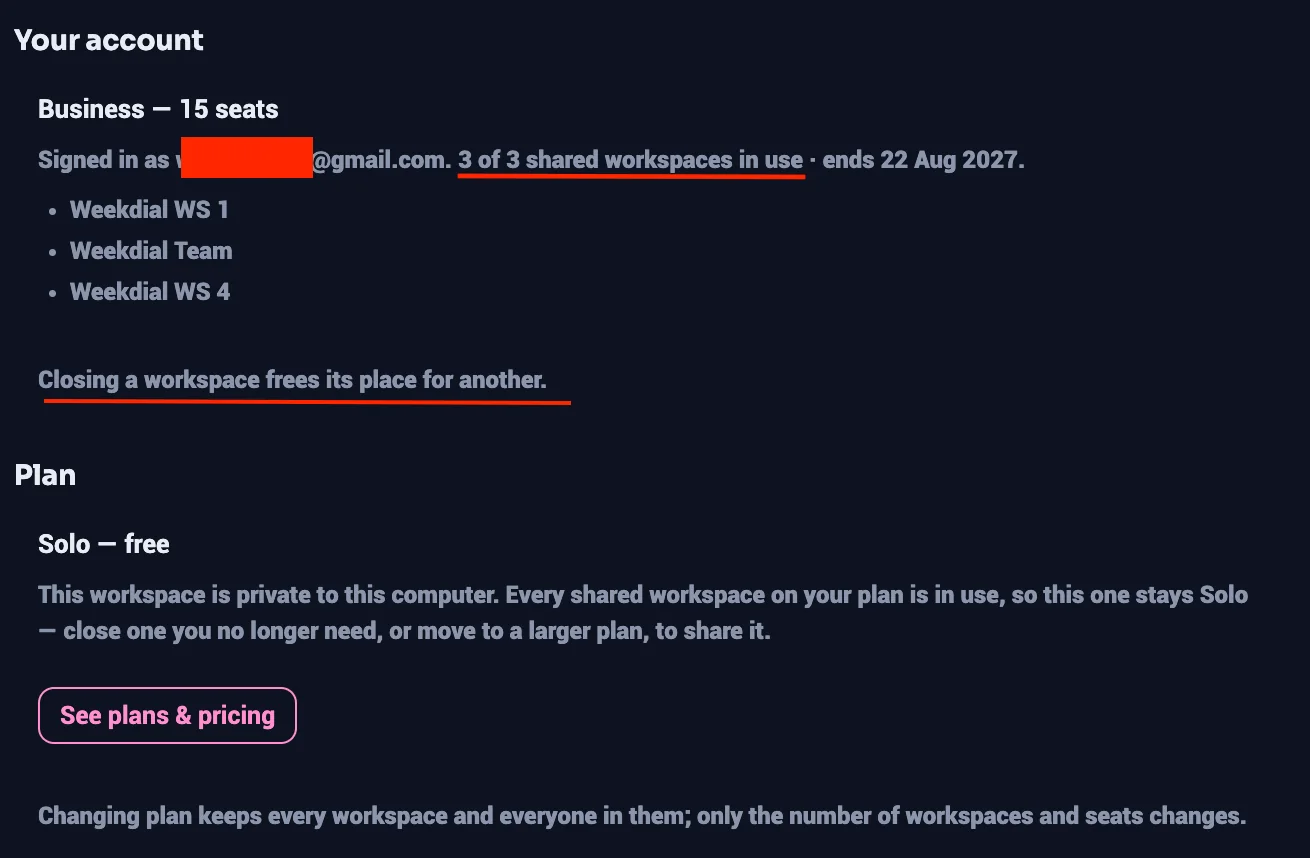
The card explains that this one stays Solo, and offers See plans & pricing. Either close a shared workspace you no longer need, or move to a larger plan. Closing one frees the slot immediately.
D. "No plan on this workspace yet" on a workspace you know is shared
This usually appears right after restoring a backup. Weekdial deliberately ignores what a backup file says about your plan — a backup records your work, not your entitlements — so the plan details arrive fresh from the cloud instead, within about thirty seconds.
If it has been longer than that, check you are signed in. Without a sign-in there is no way to confirm which plan covers this workspace, so the card has nothing to show. Signing in fixes it.
If you are signed in and it still says this after a minute, the workspace genuinely is not attached to a licence. Use Activate a licence to put it on one.
The card reads No plan on this workspace yet, with:
Start free 14-day trial — only if your account has never used one
Activate a licence
Simply Sign in, Click the Activate a Licence and enter your Licence code.
E. You are on a live plan or trial
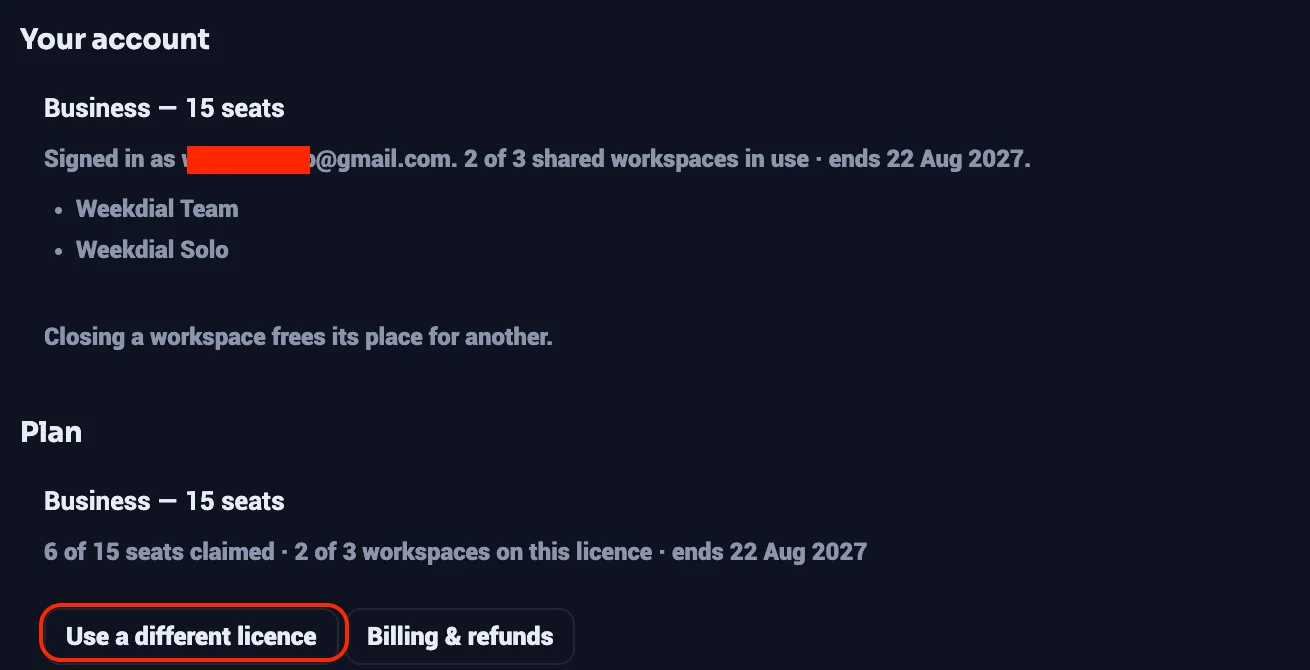
The card names the plan and seats — Team — 10 seats — with how many seats are claimed, how many workspaces the licence covers, and when it renews.
Two buttons:
Use a different licence — this stays available on a live plan. Upgrading part-way through a trial is the most common reason to use it.
Manage subscription (or Billing & refunds, depending on where you bought) — not shown on a trial, since a trial has nothing to bill.
F. You cancelled, and the plan has not ended yet
The card still shows your plan and seats as normal. Underneath, it says the plan will not renew, that everything keeps working until that date, and that nothing is deleted afterwards.
Nothing to do. If you change your mind, Manage subscription lets you resume.
G. Your plan has ended and the workspace is read-only
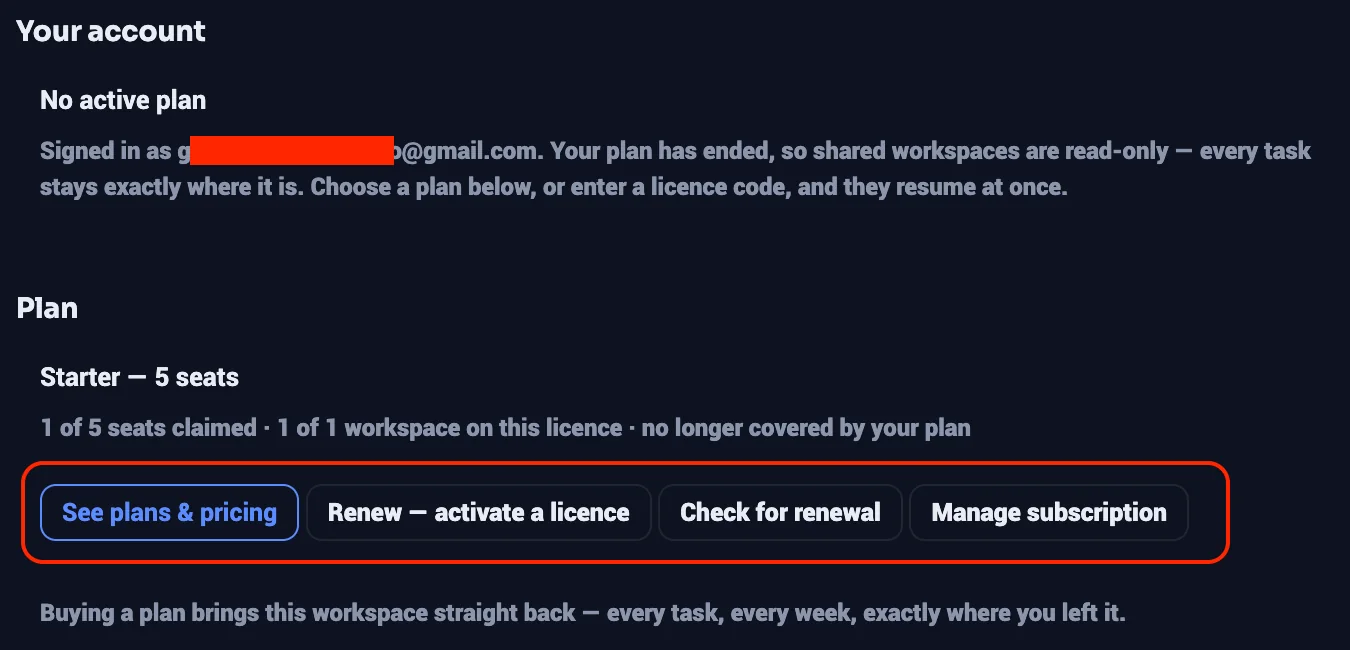
The likeliest reason you are reading this section. Three buttons:
Renew — activate a licence — if you already hold a code or a licence on your account
Check for renewal — if you have just paid and are waiting for it to arrive
See plans & pricing — if you need to buy
Everything comes back exactly as it was. No task, week or dial is deleted when a plan ends — the workspace simply stops syncing until a plan covers it again.
H. You were invited to someone else's workspace
There is no Plan card at all. Not the plan, not the seats, not the renewal date — you cannot see the plan details of a board you were invited to, because those belong to whoever pays. If a shared workspace has gone read-only and you cannot find anywhere to fix it, you are not the admin. Ask whoever set the workspace up.
The two ways to activate
Entering a code. Every activation button will accept a licence code. This is the route that works for every buyer, whatever address you signed in with, and it is the one to use if you bought under a different email.
Choosing from what you already hold. On Activate a licence, Use a different licence or Renew, leave the code box blank and press OK. Weekdial then lists the licences on your account that have room, and you pick one. Licences that are full or expired are not offered — they could only produce a refusal.
That second route exists mainly for one thing a code cannot name: a trial has no code at all.
What "Check for renewal" is telling you
This button appears only on a workspace waiting on a renewal, and it reports exactly what it found on your account:
| What it says | What to do |
|---|---|
| A licence with room is named | Use Renew — activate a licence to put this workspace on it |
| Your plan is active, but every workspace on it is in use | Close a workspace you no longer need, or move to a larger plan. |
| No active plan on this account | If you have just paid, wait a moment and try again. Otherwise choose a plan or enter a code. |
| No plan on this account yet | Choose a plan, or enter a code if you already have one |
29 · Changing, cancelling and resuming
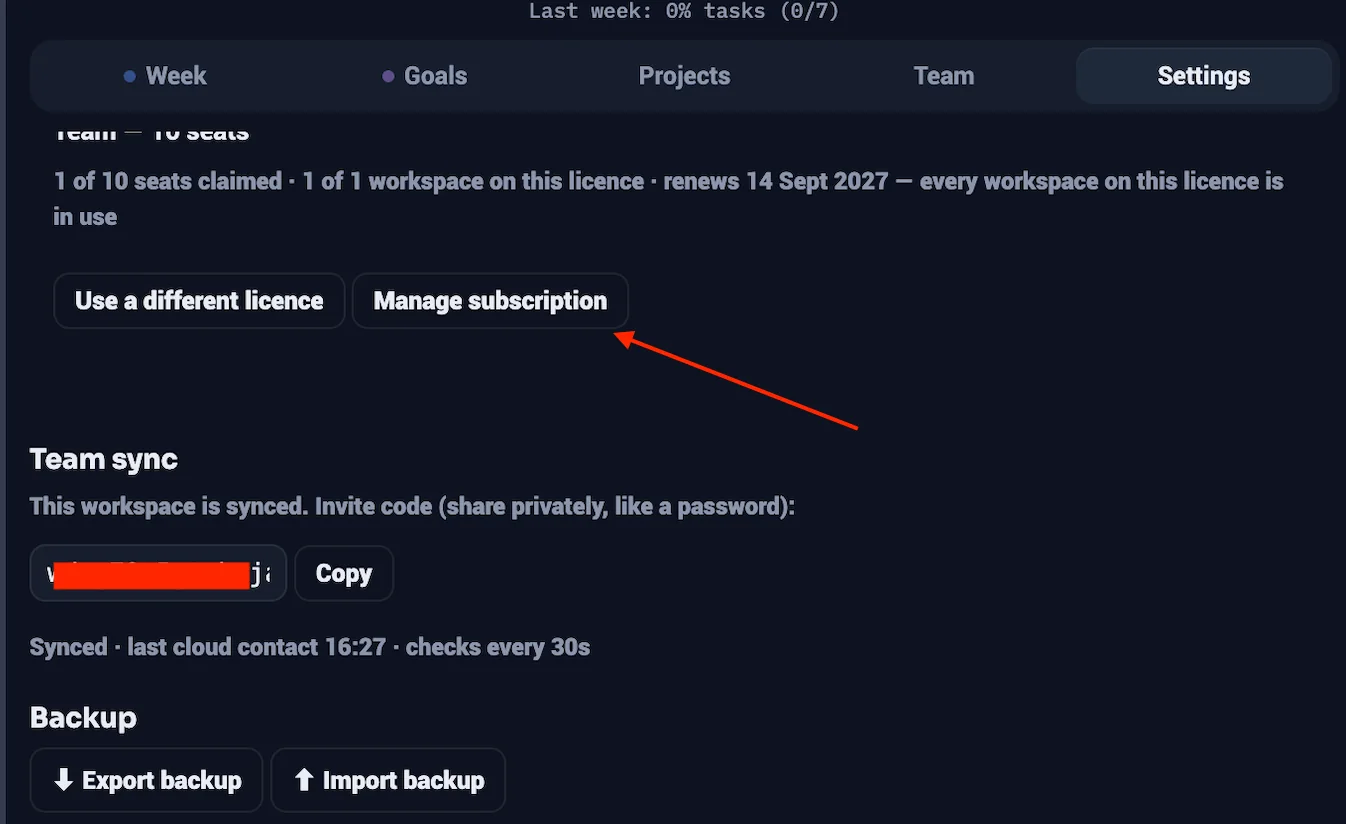
Manage subscription in Settings opens Stripe's billing portal, where you can change card, change plan, download invoices, cancel and resume.
Upgrading takes effect immediately and is charged pro rata. Nobody is removed.
Downgrading takes effect at renewal, so you keep what you've paid for. If a smaller plan wouldn't fit everyone, Weekdial names exactly who would be affected before anything happens — unclaimed invitations first, then the newest members. Admins are never removed.
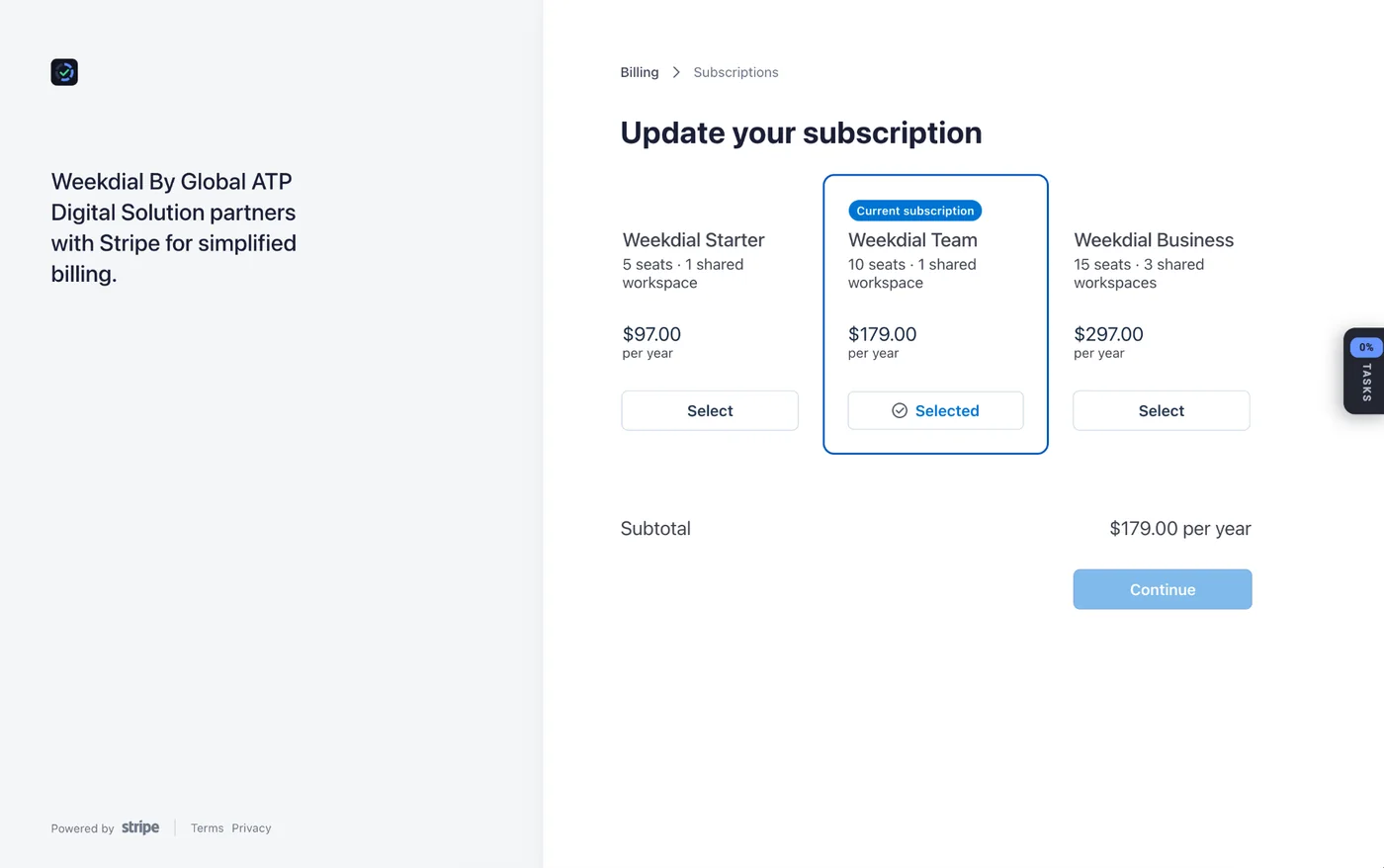
Cancelling keeps your access to the end of the period you've paid for. It changes nothing before then.
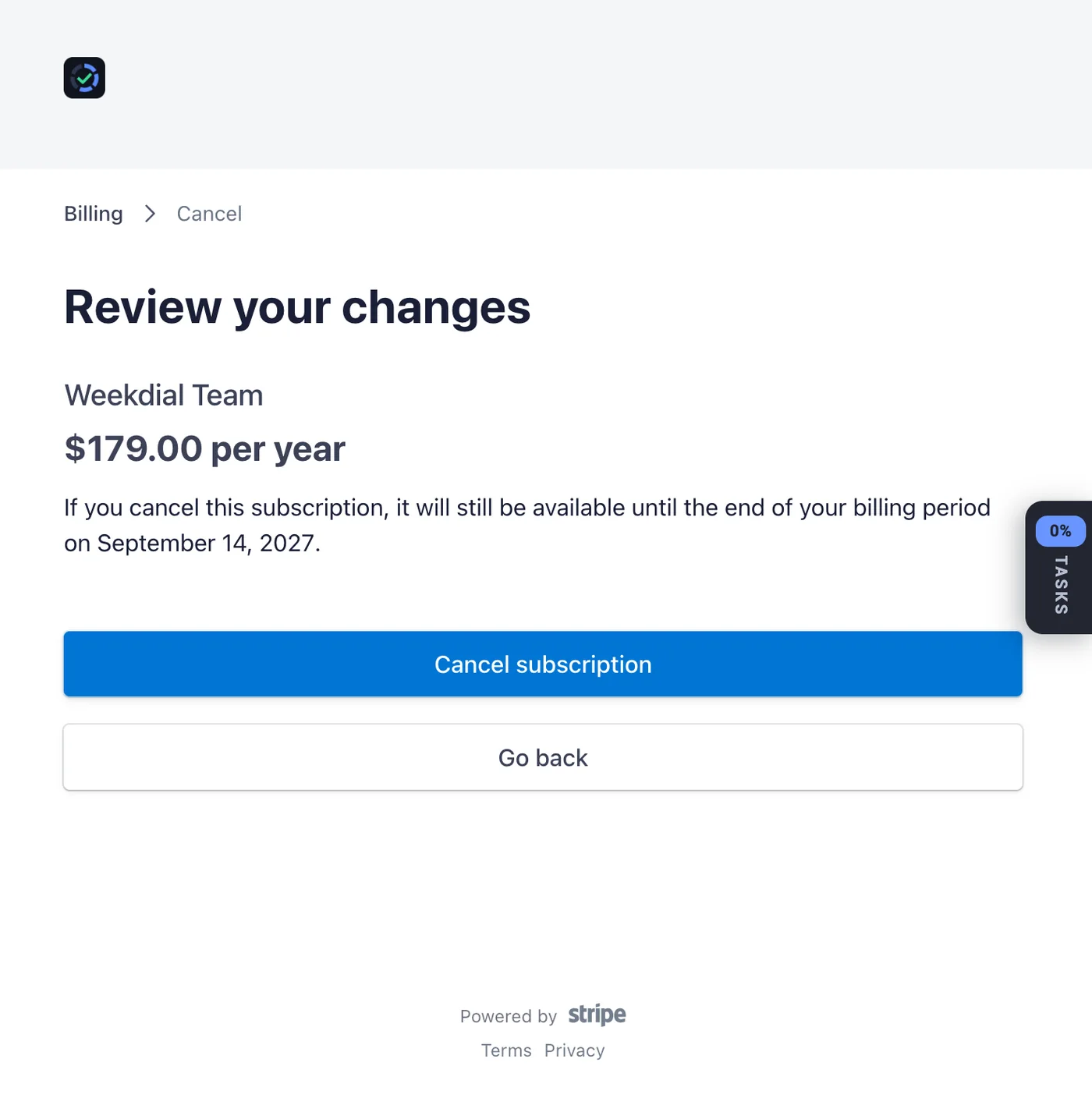
When a plan ends, nothing is deleted. Shared workspaces become read-only — everything still there, still readable — and they resume the moment a plan covers them again.
Module 7 · When something looks wrong
30 · If it isn't syncing
First, every time: are you signed in? Open Settings and look at the account line. A signed-out computer can't reach a shared workspace — and this is the cause far more often than anything else.
If you are signed in and a board still looks stale, check your connection. Weekdial syncs every 30 seconds and catches up on its own once a connection returns. Nothing you did while offline is lost; it's waiting on your computer to be sent.
31 · What each message means
Weekdial never shows you a status code or a piece of jargon. Every message says what happened and what to do about it. Here is each one, and what sits behind it.
| What you see | What happened |
|---|---|
| You have been removed from this workspace | An admin removed you. Your copy stays for 7 days. |
| This workspace was closed by its owner | The whole workspace ended, for everyone. |
| Sign in to sync your changes | You're signed out. Your work is safe; sign in and it sends. |
| Signed out — your shared workspaces have stopped updating | You are signed out, so your shared workspaces have stopped receiving your team's changes. Nothing is lost — the board is frozen at its last sync. |
| …is read-only | The plan lapsed, or there are more members than seats. |
| Changes not synced | A temporary failure. Weekdial keeps retrying. |
32 · Keeping Weekdial up to date
Weekdial updates itself. New versions arrive automatically and apply themselves when you're not in the middle of something.
To get the newest version right away: close and reopen Chrome.
You can check which version you're running at the foot of Settings — worth including if you ever write in about a problem.
33 · Getting help
The support address is at the foot of Settings — click it and it copies.
Training videos and guides are at weekdial.app/resources , also linked from Settings.
Every message is read by a person. If something is confusing, it's worth telling us — a fair number of Weekdial's improvements started as someone's email.
In closing
You now have what you need to run your week in Weekdial — and, when you want it, to run it with your team.
If only a few things stay with you from this guide, let them be these.
The dial is the point
A list tells you what is left. The dial tells you how far through the week you are — at a glance, from across the room, without reading anything. Everything else in Weekdial hangs off that one idea.
Solo is yours alone; shared needs a plan
That single distinction explains most of what people find confusing at first. A Solo workspace is free and lives only on your computer. A shared workspace lives in the cloud so your team can reach it, which is why it needs an account and a plan.
Nobody loses their own work
A plan ending, someone leaving, a workspace closing — none of it deletes anything. The copy on your computer stays yours, and you can take a backup any time you like. Weekdial is built so you can always walk away with everything you put in.
When something looks wrong, ask one question first
Are you signed in? Open Settings and look at the account line. It is the answer far more often than anything else, and it costs you five seconds to rule out.
What to do next
Don't try to set everything up at once. Do this instead:
1. Open the panel and put three tasks into this week, with a day on each.
2. Tick one off and watch the dial move.
3. Come back tomorrow and do it again.
That is the habit the whole product rests on. Goals, projects, templates, reports, a shared board with your team — all of it is worth adding once the week in front of you is worth looking at.
If you are working with a team, your next step is Module 4. Read it before you invite anyone; a few minutes there saves most of the questions people ask later.
Where to find more
Training videos and written guides — weekdial.app/resources. There are short videos for every section in this guide.
Current plans and prices — weekdial.app/pricing, which always shows the live position.
Support — the address at the foot of Settings. Click it and it copies.
One last thing
Weekdial is deliberately small, and it stays small. It answers one question and tries to answer it well, which means saying no to a great deal that other tools say yes to.
If something here isn't clear, or Weekdial does something you didn't expect, tell me. I read every message myself, and a fair number of Weekdial's improvements started as somebody's email.
Dial in your week.
Paul Akande T.
Weekdial · weekdial.app
Disclaimer
This guide describes Weekdial as it worked at the time of writing. Weekdial is updated regularly, so some screens, wording or limits may differ from what you see. Where this guide and the product disagree, the product is correct.
This guide is provided for instruction only. It is not a contract and it does not change the terms you agreed to when you installed Weekdial or bought a plan.
The Terms of Service and Privacy Policy at weekdial.app govern your use of Weekdial, and they take precedence over anything written here.
Prices, plan limits and features are those in effect at the date of this edition and may change. weekdial.app/pricing always shows the current position.
Google Chrome, Google Workspace, Slack, WhatsApp, Telegram and Stripe are trademarks of their respective owners. Weekdial is not affiliated with, endorsed by or sponsored by any of them.
© 2026 Weekdial. All rights reserved. Weekdial is operated by Paul Akande T. No part of this guide may be reproduced or distributed without permission — Weekdial customers are welcome to share it freely within their own team.